
Key Takeaways
- The iScreen time and date widgets are built with Vue reactivity to remain incredibly lightweight and resource-friendly.
- Configuring the productivity focus mode prevents unwanted context switching by hiding distracting elements during work blocks.
- Custom CSS overrides allow developers to perfectly match their dashboard aesthetic to their system theme.
- Integrating the calendar with Day.js ensures highly accurate, localized time tracking without performance overhead.
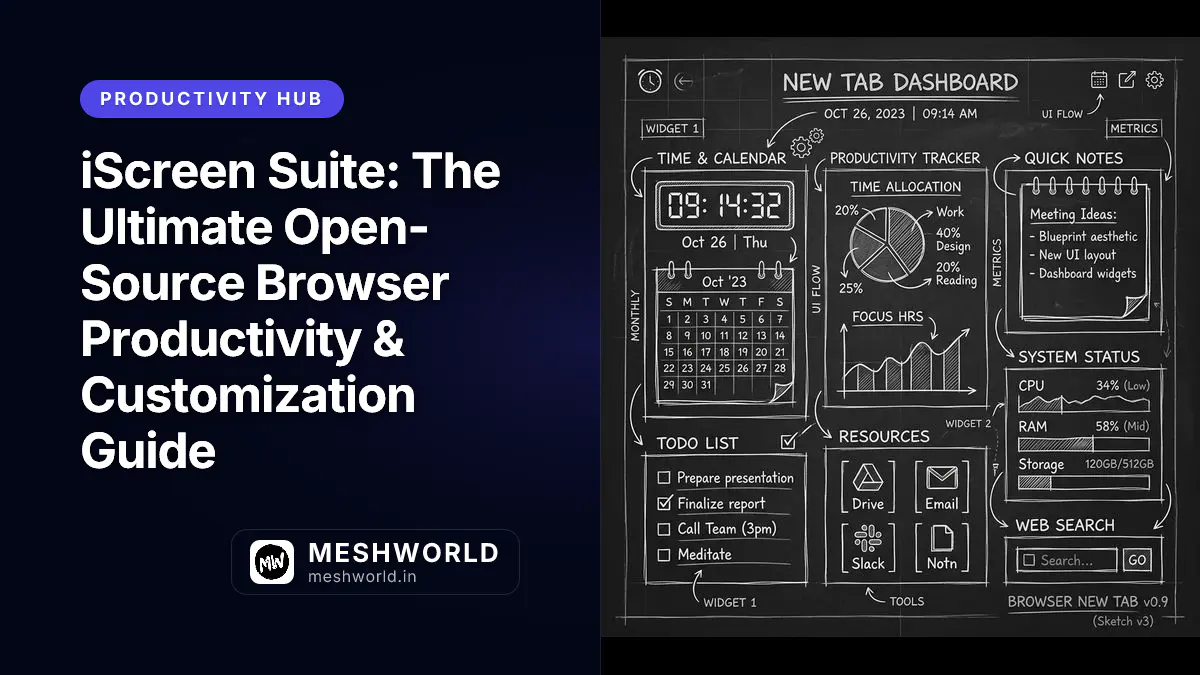
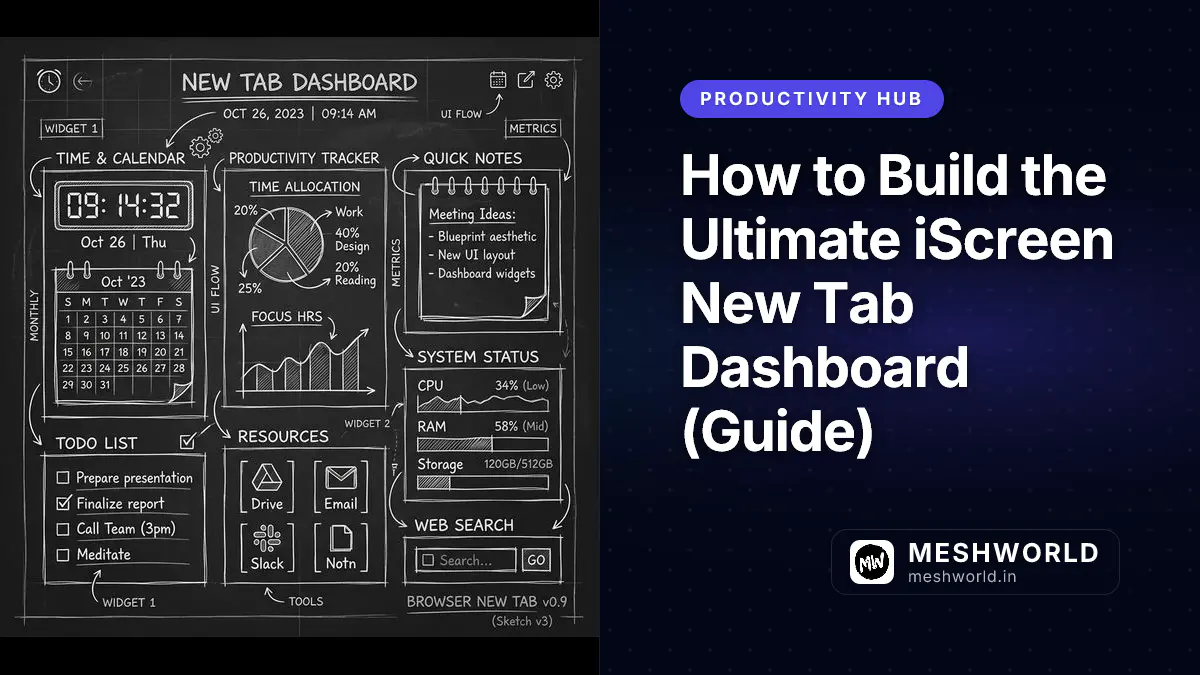
Time blindness is the silent killer of deep work. It sneaks up on you when you are deeply engrossed in a complex problem, causing hours to pass in what feels like minutes. By properly configuring the iScreen time and date widgets, you can build a focused dashboard environment that keeps you anchored in reality without pulling you out of your hard-earned flow state. Managing a new tab dashboard is often overlooked, but it is one of the most critical spaces for a developer—it is the interstitial room between your thoughts and the web. This guide will walk you through setting up, tweaking, and perfectly optimizing your iScreen time modules.
Why do you lose track of time while coding?
You lose track of time while coding because the brain enters a hyper-focused state known as flow, which suppresses the neural circuits responsible for perceiving the passage of time, making hours feel like mere minutes.
When you are deeply engrossed in debugging a complex problem, architecting a new microservice, or writing a new feature, your working memory is entirely consumed by the task at hand. The typical indicators of time passing—like changing light in the room, minor physical discomforts, or background noises—are actively filtered out by your prefrontal cortex. This sensory gating is excellent for productivity but terrible for time management, often leading to missed meetings or severe burnout. This is exactly why a simple, well-placed time widget is essential: it acts as a subtle, non-intrusive anchor back to reality. It allows you to maintain situational awareness without demanding the heavy cognitive load required to check a phone or parse a cluttered system tray.
- Flow state — Suppresses time perception and blocks external stimuli.
- Anchor needed — Visual cues are required to prevent burnout and schedule overruns.
- iScreen solution — A zero-distraction, highly customizable clock widget tailored for deep work.
How to Configure the Basic Clock Widget
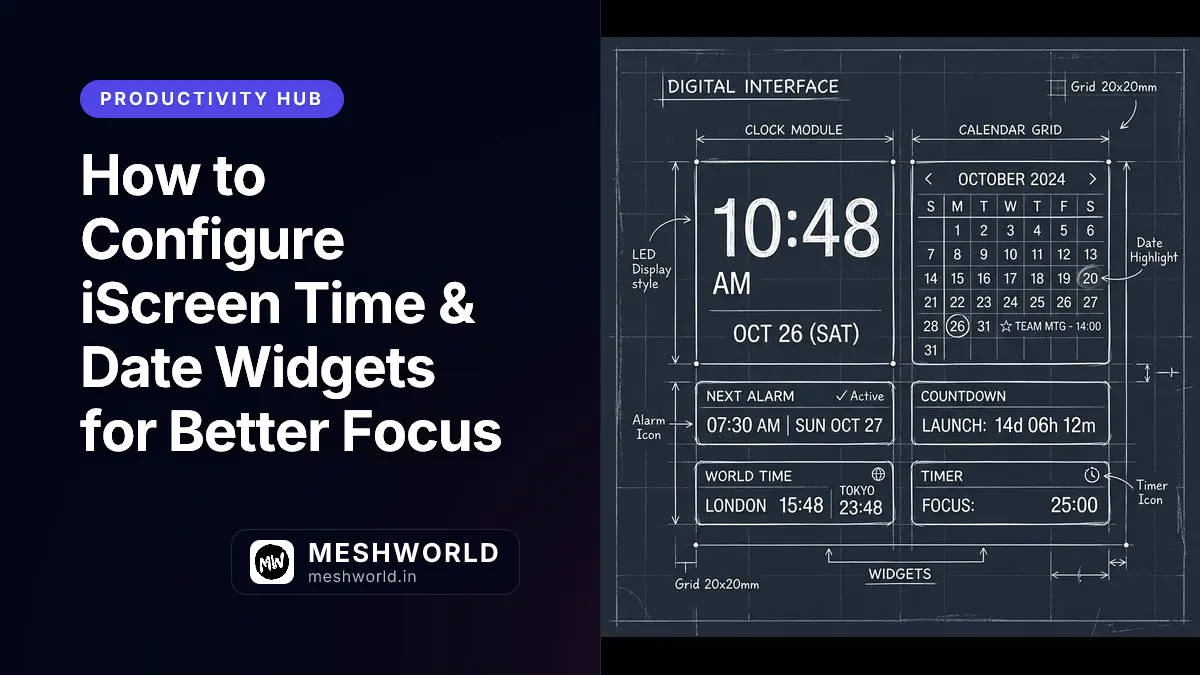
Setting up your clock widget is the foundational step for taking control of your new tab experience. iScreen offers an extensive array of layout configurations directly out of the box, allowing you to tailor the visual hierarchy to your exact needs.
Dashboard Settings and Controls
To access the configuration panel, click the settings gear icon in the bottom left corner of your iScreen dashboard, then navigate to Widgets > Time & Date. This panel provides granular control over the widget’s behavior and aesthetic.
| Setting Name | Purpose | Recommended Value | Impact on Productivity |
|---|---|---|---|
| Time Format | Toggles between 12-hour and 24-hour display modes. | 24-hour | Improves precision and eliminates AM/PM ambiguity during late-night sessions. |
| Show Seconds | Determines if the seconds counter is visible and animating. | Disabled | Reduces visual anxiety and completely eliminates rapid UI repaints. |
| Font Family | Sets the typography of the widget. | JetBrains Mono | Enhances readability and aligns with standard developer environments. |
| Widget Scale | Adjusts the overall size of the module relative to the viewport. | 1.2x | Makes the time legible from a distance without squinting. |
| Alignment | Positions the widget within its allocated grid cell. | Center | Creates visual balance and symmetry on the dashboard. |
Walk-through: Setting Up Your First Clock
- Open the Module Drawer: Hover over the center of your screen to reveal the dock, and click the
+ Add Widgetbutton. This will open the widget library. - Select Time & Date: Locate the Time & Date category and drag the widget block into your preferred quadrant. For productivity setups, the top-center or top-left positions are optimal, as they mimic the natural reading pattern of Western languages.
- Customize Display: Use the contextual menu that appears when you hover over the widget. Disable the seconds display to prevent a ticking clock from inducing unnecessary urgency.
- Lock the Grid: Once positioned, click the padlock icon on the main dashboard to lock your layout in place, preventing accidental drags during rapid tab switching.
Always disable the “Show Seconds” option during deep work blocks. The constant visual updating can create an artificial sense of urgency that disrupts cognitive focus and increases your baseline stress levels without you even realizing it.
What are the best advanced settings for deep work?
The best advanced settings for deep work involve enabling the Pomodoro overlay, hiding the date during active sprints, and switching to a monochrome theme to absolutely minimize cognitive load and visual distraction.
Beyond the basic setup, iScreen’s rendering engine allows for granular control over how and when information is presented to you. When you are optimizing for a flow state, less is always more.
Exhaustive Feature Explanation: Vue Reactivity and shallowRef
Under the hood, the iScreen dashboard is powered by the progressive Vue 3 framework. To maintain a perfectly smooth 60fps experience—even when rendering multiple complex widgets simultaneously—the engineering team made highly specific architectural choices regarding reactivity.
When dealing with constantly updating data like the current time, traditional deep reactivity can introduce noticeable overhead. Every single second, a new Date object is created, evaluated, and assigned. To prevent the framework from recursively traversing this object to look for changes, iScreen utilizes Vue’s shallowRef utility.
Instead of making the entire Date object deeply reactive—which forces Vue to track every single property, including hours, minutes, seconds, and milliseconds—shallowRef only triggers a component update when the actual top-level reference to the object changes.
Here is an architectural example of how the internal engine optimizes these rapid updates:
// iScreen internal time engine utilizing shallowRef
import { shallowRef, onMounted, onUnmounted } from 'vue';

export function useOptimizedTime() {
  // shallowRef avoids deep proxying of the Date object
  const currentTime = shallowRef(new Date());
  let timerId: number;

  onMounted(() => {
    // Only update the reference, bypassing expensive deep reactivity checks
    timerId = window.setInterval(() => {
      currentTime.value = new Date();
    }, 1000); // This interval dynamically changes to 60000 if seconds are disabled!
  });

  onUnmounted(() => {
    clearInterval(timerId);
  });

  return { currentTime };
}
This specific implementation ensures that the widget uses virtually zero CPU cycles in the background. It preserves your laptop’s battery life and leaves all system resources available for your heavy compilation steps, Docker containers, and local dev servers.
How does the calendar integration protect flow state?
The calendar integration protects your flow state by utilizing a smart minimalist view that only reveals your immediate next meeting, preventing the overwhelming anxiety of seeing an entirely packed daily schedule.
iScreen uses Day.js for all date and time parsing under the hood. Day.js is an incredibly lightweight (2kB) and modern alternative to legacy libraries like Moment.js, utilizing the exact same straightforward API but with a fraction of the bundle size.
By leveraging the Day.js integration, the widget can intelligently parse your calendar events and display them relative to your current time (e.g., “Standup in 15 mins”). This relative time formatting is far easier for the human brain to process at a glance than calculating the difference between 10:14 AM and 10:30 AM manually.
Day.js Integration Deep Dive
The calendar widget uses a sophisticated computed property to calculate the time remaining until your next event, automatically updating in real-time without refreshing the page:
import dayjs from 'dayjs';
import relativeTime from 'dayjs/plugin/relativeTime';

// Extend dayjs with the relative time plugin for human-readable outputs
dayjs.extend(relativeTime);

// Calculates the time remaining until the next focus block ends
export const getRelativeTime = (targetDate: string) => {
  // Automatically handles past and future tense (e.g., "in 5 minutes", "2 hours ago")
  return dayjs(targetDate).fromNow();
};
This ensures you are never surprised by a sudden meeting, yet you aren’t staring at a daunting list of tasks either.
Comparison Chart: Default vs. Productivity Focus Mode
Understanding the fundamental differences between the standard out-of-the-box setup and a truly optimized dashboard is critical for long-term productivity and focus.
| Feature | Default Configuration | Productivity Focus Mode | Impact on Workflow & Cognition |
|---|---|---|---|
| Clock Size | Medium | Large | Easier to glance without changing posture or leaning in. |
| Seconds Display | Enabled | Disabled | Greatly reduces visual anxiety and CPU overhead from repaints. |
| Calendar View | Monthly Grid | Next Event Only | Prevents schedule overwhelm and maintains present-moment focus. |
| Color Palette | Dynamic (Wallpaper based) | Monochrome / Muted | Reduces visual stimuli, keeping the dashboard strictly utilitarian. |
| Click Action | Opens full calendar app | Starts Pomodoro Timer | Instantly transitions the user into a dedicated deep work block. |
How can I implement custom CSS overrides?
You can implement custom CSS overrides by navigating to the Advanced tab in the settings panel and pasting standard CSS rules into the Custom Styles text area, which are then injected via a scoped style block.
For frontend developers and designers who want absolute control over their environment, iScreen natively supports robust custom CSS injection. You can target the specific classes used by the widget to alter everything from drop shadows to kerning and letter spacing.
Advanced Custom CSS Examples
To make the clock widget blend seamlessly into a modern dark mode aesthetic with a subtle glassmorphic effect, use the following snippet. Note the use of the iscreen- prefix, which is the standard namespace for all elements in the extension.
/* Target the main wrapper of the time widget */
.iscreen-widget-time {
  background: rgba(15, 23, 42, 0.4) !important;
  backdrop-filter: blur(12px) saturate(150%) !important;
  border: 1px solid rgba(255, 255, 255, 0.05) !important;
  border-radius: 16px !important;
  box-shadow: 0 4px 30px rgba(0, 0, 0, 0.1) !important;
  transition: all 0.3s ease-in-out !important;
}

/* Target the typography for a cyber-aesthetic */
.iscreen-widget-time h1 {
  font-family: 'JetBrains Mono', monospace !important;
  font-weight: 700 !important;
  letter-spacing: -0.05em !important;
  color: #e2e8f0 !important;
  text-shadow: 0 2px 10px rgba(0,0,0,0.5) !important;
}

/* Add a subtle hover effect */
.iscreen-widget-time:hover {
  transform: translateY(-2px) !important;
  border-color: rgba(255, 255, 255, 0.15) !important;
}When applying custom CSS, always include the !important flag for properties you want to override, as the baseline Tailwind utility classes injected by iScreen carry a high level of specificity and will otherwise take precedence.
Just as you would optimize assets on a website for maximum performance (which you can learn more about in our comprehensive Squoosh Image Optimization Guide), optimizing your custom CSS ensures that your dashboard loads instantly without any layout shifts or jarring flashes of unstyled content. Clean CSS means a clean, fast dashboard.
Summary
- Optimize for Flow: Disable the seconds display and use a 24-hour format to reduce visual anxiety and maintain deep, uninterrupted work states.
- Leverage Advanced Engine Features: The underlying Vue 3 architecture intelligently utilizes
shallowRefto ensure the widget has practically zero performance overhead on your machine, preserving resources for your actual work. - Smart Calendar Integration: Day.js powers relative time displays, showing only exactly what you need to see (“Meeting in 15 mins”) instead of your entire packed schedule, preventing preemptive burnout.
- Customization is Key: Use the custom CSS override panel to implement glassmorphism, adjust precise typography settings, and perfectly integrate the widget into your specific desktop aesthetic requirements.
FAQ
How do I change the time zone of the widget?
By default, the iScreen time widget syncs automatically with your local system clock. To override this and display a different time zone, open the settings panel, navigate to the Advanced tab, and manually enter your desired IANA time zone string (e.g., America/New_York or Europe/London).
Will having multiple widgets drain my laptop battery?
No. Because iScreen uses Vue’s shallowRef and highly optimized requestAnimationFrame loops for its updates, the rendering overhead is minimal. You can comfortably run multiple instances of the clock and calendar without noticing any negative impact on your battery life or system memory.
Can I sync the calendar widget with my Google Calendar?
Yes. You can authorize the Google Calendar integration directly in the settings menu under the “Integrations” tab. The data is fetched securely via API and cached locally in your browser to prevent rate limiting, ensuring your next meeting is always displayed instantly on new tabs.
Why does my custom CSS look broken after an extension update?
If a major update changes the underlying DOM structure or the utility class names of the widgets, your custom CSS may no longer target the correct elements. Always inspect the elements using your browser’s developer tools after a major release to update your targeted .iscreen- classes.
Can I hide the widget automatically during specific hours?
Currently, the easiest way to manage visibility is by setting up different iScreen Workspaces. You can create a “Deep Work” workspace that omits the calendar entirely, and schedule it to activate automatically during your most productive hours.