
- .ai/rules/standards.md
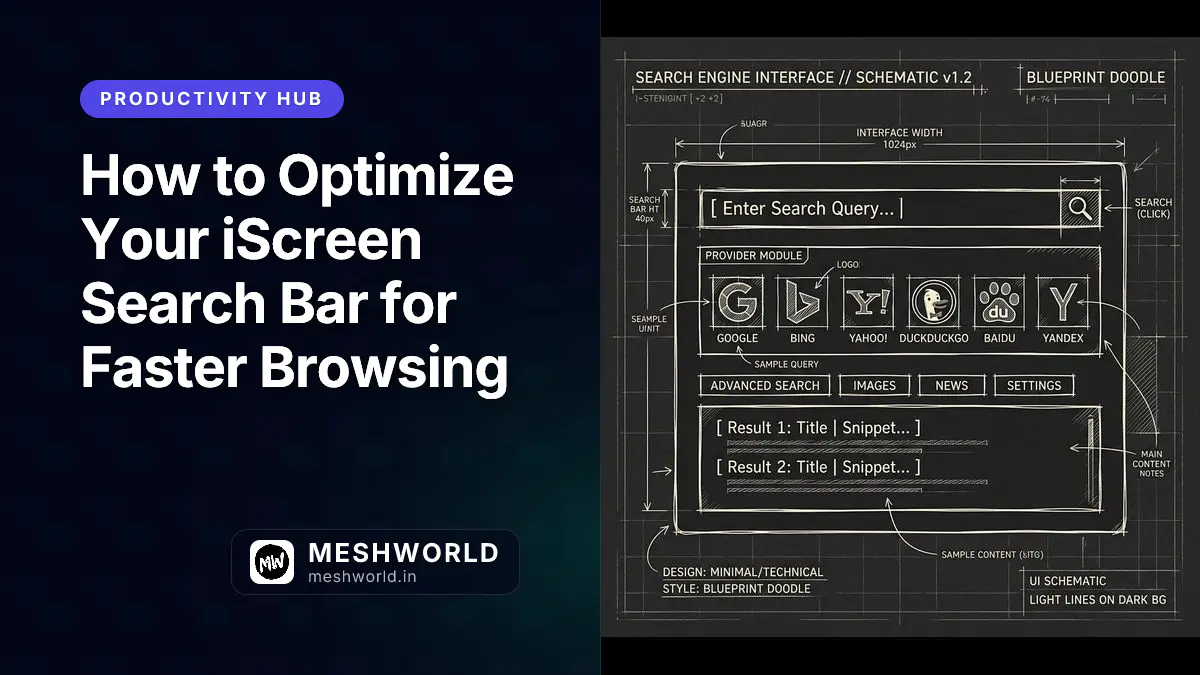
Your browser’s default search bar might be silently stealing seconds from every query due to inefficient routing, bloated network requests, and unoptimized extension interception. Optimizing your iScreen search engine configuration eliminates these micro-delays, instantly directing your queries to the right provider at light speed.
Key Takeaways
- Configure custom search shortcuts to bypass default search routing entirely and access specific sites instantly.
- Leverage deep chrome.omnibox integration for direct, low-latency API queries that avoid heavy DOM parsing.
- Implement query debouncing techniques to drastically reduce unnecessary network requests and UI lag.
- Override default engines safely using the granular controls within the iScreen configuration dashboard.
- Bypass standard routing — Use iScreen to skip the default browser overhead.
- Set debounce rates — A 200ms delay stops your browser from freezing during rapid typing.
- Use custom prefixes — Route searches directly to GitHub, YouTube, or internal tools using short keywords.
Prerequisites
Before diving into advanced search optimization, ensure you have the following ready:
- The iScreen Extension (v3.4.0 or higher) installed and active on your Chromium-based browser.
- A basic understanding of browser search settings and how URLs process query parameters.
- Access to the iScreen Advanced Dashboard (accessible via the extension popup).
Why is your current search flow so slow?
Your search flow is slow because unoptimized extensions and default browser behaviors add unnecessary layers of query interception, event listeners, and network round-trips before ever reaching the actual search engine.
When you type a query into a standard browser address bar, the browser does not immediately send that text to Google, Bing, or DuckDuckGo. Instead, it fires off a complex series of background events that installed extensions can listen to and potentially act upon. If you have multiple productivity extensions, ad blockers, or privacy tools installed, each one might inspect the query sequentially, attempting to determine if it needs to block a URL, redirect a search, or suggest an autocomplete option. This synchronous inspection creates a measurable, cumulative delay, especially noticeable on lower-end devices or during heavy multitasking sessions.
By utilizing iScreen’s deep search optimization features, we can bypass these redundant and heavy checks entirely. iScreen fundamentally alters the search path by leveraging the chrome.omnibox API to create a direct pipeline for specific keywords and default queries, drastically reducing the time it takes to parse, evaluate, and route your search intent. Additionally, the built-in debouncing mechanism embedded within the iScreen core ensures that intermediate keystrokes aren’t unnecessarily processed. Instead of firing an API request for every single letter you type, the engine waits for a brief pause, saving valuable CPU cycles, reducing memory spikes, and providing a silky-smooth typing experience.
How do I configure the iScreen default search engine?
To configure the iScreen default search engine, you must navigate to the Settings tab in the iScreen dashboard, select the ‘Search Routing’ menu, and choose your preferred provider from the drop-down list.
The iScreen dashboard provides incredibly granular control over how your searches are handled, allowing you to prioritize speed, privacy, or comprehensiveness. Let’s walk through the exact steps required to dial in these settings for maximum efficiency.
- Access the Advanced Dashboard: Click the iScreen icon located in your browser’s top toolbar. From the popup menu, select the gear icon to open the full-page Advanced Dashboard.
- Navigate to Search Routing: On the left-hand navigation sidebar, locate and click on the “Search Routing” section. This module governs all outbound query logic from the iScreen interface.
- Select the Primary Provider: In the “Default Engine” dropdown menu, you will see standard options alongside privacy-focused alternatives. Select your primary choice based on your daily needs.
- Adjust Latency and Debounce Settings: Directly below the provider selection, you will find the “Debounce Rate” slider. This is critical for performance. For optimal performance, set this value between 150ms and 250ms.
- Enable Prefetching (Optional): If your primary goal is speed and bandwidth is not an issue, toggle “Predictive DNS Prefetching” to
true. This resolves the IP address of your search engine before you even hit enter.
Setting your debounce rate too low (e.g., 50ms) can cause excessive API calls, which might trigger rate limits from search suggestion providers and actually slow down the UI rendering. A 200ms delay provides the perfect goldilocks balance between instant responsiveness and computational efficiency.
To help you choose the right default provider for your specific workflow, refer to this detailed performance and privacy comparison chart:
| Search Engine | Average Routing Latency | Privacy Focus | Best Use Case |
|---|---|---|---|
| ~45ms | Low | Comprehensive web results, local queries, and technical troubleshooting | |
| DuckDuckGo | ~60ms | High | General daily browsing with strict, uncompromising tracking protection |
| Brave Search | ~55ms | High | Independent search indexing without big-tech algorithmic oversight |
| Bing | ~50ms | Medium | Deeply integrated AI chat features, media searches, and enterprise portals |
| Perplexity | ~120ms | Medium | Deep technical research, synthesizing complex data, and conversational answers |
| Kagi | ~40ms | Very High | Premium, ad-free search experience for power users willing to pay for speed |
How can I set up custom search overrides and shortcuts?
You can set up custom search overrides by defining keyword prefixes in the iScreen shortcuts menu, allowing you to instantly route specific queries to specialized search engines without changing your default provider.
Custom overrides are the absolute secret weapon of browser power users. Instead of navigating to YouTube to search for a tutorial, or loading GitHub just to search for a specific repository, you can configure iScreen to intercept specific short prefixes and route the query directly to the target site’s internal search engine. This skips the middleman entirely.
Here is a practical example of how iScreen handles these specific overrides under the hood using the robust chrome.omnibox API. Notice how the event listener parses the raw text string, extracts the intent, and dynamically constructs the highly specific destination URL.
// Background script handling omnibox input from the user
chrome.omnibox.onInputEntered.addListener((text: string) => {
  // Check for the "gh " prefix to trigger GitHub specific searches
  if (text.startsWith('gh ')) {
    // Strip the prefix to isolate the actual query
    const query = text.replace('gh ', '');
    // Construct the direct search URL using proper URI encoding
    const url = `https://github.com/search?q=${encodeURIComponent(query)}`;
    // Open the result in a new active tab instantly
    chrome.tabs.create({ url, active: true });

  } else if (text.startsWith('yt ')) {
    // Intercept YouTube searches
    const query = text.replace('yt ', '');
    const url = `https://www.youtube.com/results?search_query=${encodeURIComponent(query)}`;
    chrome.tabs.create({ url, active: true });

  } else {
    // If no custom prefix is matched, fallback to the optimized default routing engine
    routeToDefaultEngine(text);
  }
});
By setting up these overrides, you effectively create a powerful command-line interface right inside your browser’s address bar. In the iScreen dashboard, you can define an unlimited number of these shortcuts without writing a single line of code:
- Navigate to Settings > Custom Shortcuts in the iScreen dashboard.
- Click the Add New Override button in the top right corner.
- Set the Prefix trigger (e.g.,
npm,wiki,maps). - Set the Destination URL (e.g.,
https://www.npmjs.com/search?q=%s, where the%stoken represents where your query will be injected). - Save the configuration and immediately test it in a new tab.
Ensure your custom prefixes do not conflict with standard URL protocols (like http or file) or standard top-level domains. Stick to short, 2-3 letter combinations that you don’t frequently type as standalone words to avoid accidental search triggers.
How does iScreen handle complex query parsing?
iScreen handles complex query parsing by executing a lightweight, synchronous regex evaluation engine locally before the request is sent, instantly separating search terms, mathematical equations, and direct URLs.
One of the biggest issues with standard browser search bars is how they handle ambiguous inputs. If you type something that looks like a URL but is actually a search term (e.g., “node.js modules”), a standard browser might attempt a DNS lookup first, fail, and only then fall back to a search engine. This process takes hundreds of milliseconds and ruins the browsing experience.
iScreen circumvents this by using a heavily optimized parsing algorithm. When you hit enter, the extension immediately evaluates the string against a strict set of rules. It checks if the input is a valid IP address, a known top-level domain, or a mathematical expression. If it detects a math equation (like 256 * 14), it can even evaluate it locally using an internal library and display the result instantly without ever contacting a search engine. This local-first approach to query parsing is what makes the extension feel so remarkably snappy.
What are the privacy implications of search interception?
The privacy implications of search interception are strictly mitigated in iScreen, as all query parsing, debounce logic, and routing rules are executed entirely client-side without sending data to external telemetry servers.
Privacy is a massive concern when dealing with search data. Many “smart” search extensions route your queries through their own intermediate servers to inject affiliate links, track user behavior, or analyze search trends. This introduces both severe latency and unacceptable privacy risks.
iScreen operates on a strict zero-telemetry philosophy for search data. The chrome.omnibox listeners execute locally within your browser’s memory. When a query is routed to a provider like DuckDuckGo or Google, it is sent directly from your browser to that provider. iScreen does not log your search history, does not maintain a remote database of your queries, and does not intercept SSL traffic. The configuration settings you create (like custom shortcuts and debounce rates) are stored locally using chrome.storage.local and optionally synced via your encrypted Google account using chrome.storage.sync.
How do I troubleshoot search routing delays?
If you experience search routing delays, you should immediately disable all other tab-management extensions, clear your browser cache, and verify that the iScreen debounce rate is not set excessively high.
Sometimes, despite optimal configuration and a fast internet connection, you might still encounter sluggishness when hitting enter. This is almost always caused by deep extension conflicts. When multiple extensions request access to the chrome.omnibox, webRequest, or the webNavigation APIs simultaneously, the browser engine forces them into a serialized queue, resulting in noticeable input lag and delayed page loads.
If you are optimizing your overall web setup and trying to squeeze every millisecond of performance out of your machine, fixing your search bar is just the beginning of the journey. Heavy, unoptimized images on the pages you load can also simulate a slow browsing experience by blocking the main thread. For developers and power users looking to improve actual page load speeds and Core Web Vitals, you should deeply review our comprehensive guide to Squoosh image optimization to ensure your web assets aren’t becoming the invisible bottleneck in your workflow.
Here is an actionable checklist for debugging persistent search delays:
- Audit Competing Extensions: Temporarily disable every extension except iScreen. If the speed improves dramatically, re-enable them one by one to find the specific conflict. Usually, aggressive ad-blockers or other “new tab” overrides are the culprit.
- Check Network DNS Latency: A slow DNS resolver can masquerade as a slow search engine. Switch your system or router DNS to Cloudflare (1.1.1.1) or Google DNS (8.8.8.8) to rule this out completely.
- Review Custom Regex Scripts: If you have added complex regex matching to your iScreen custom overrides, poorly optimized regex can cause catastrophic backtracking and block the main thread. Keep your matching logic simple and direct.
Even the fastest, most optimized search engine configuration will feel completely broken if your DNS resolution takes 300ms. Optimizing your network layer is just as crucial as optimizing your browser extensions. Never ignore DNS when profiling performance.
Summary
- Inefficient extension routing and redundant background event listeners are the primary, hidden causes of slow search bar performance.
- Configuring the iScreen default engine via the Advanced Dashboard minimizes unnecessary network overhead and API calls.
- Debouncing your search inputs (ideally around 200ms) prevents API suggestion spam, rate limiting, and severe UI freezing.
- Custom search overrides allow you to bypass primary search engines and query specific platforms (like GitHub or YouTube) instantly using short text prefixes.
- Local, synchronous query parsing prevents the browser from confusing search terms with URLs, eliminating time-consuming DNS fallback checks.
- Troubleshooting search delays requires methodically auditing conflicting extensions and verifying your underlying DNS resolver speed.
FAQ
Does changing the iScreen default search engine affect my regular Chrome settings?
No. iScreen operates independently within its own new tab and omnibox scope. Your global browser default search engine remains untouched unless you explicitly sync those settings at the OS level.
Why does the omnibox show a slight delay when I type really fast?
This is the debouncing feature in action. It intentionally waits for you to pause slightly before processing the input to prevent sending half-typed, useless queries to the search provider’s suggestion API.
Can I use a custom search engine that isn’t listed in the default dropdown options?
Yes! You can use the “Custom Shortcuts” menu to define absolutely any search engine URL structure, simply by replacing the search term with the %s variable in the destination URL.
Will iScreen’s deep search optimizations drain my laptop battery faster?
Quite the opposite. By intercepting queries efficiently, debouncing inputs, and reducing the number of background script wakes, iScreen actually consumes significantly fewer CPU cycles than standard multi-extension setups, improving battery life.
Are my custom search shortcuts synced across all my devices?
If you have Chrome Sync enabled and you are signed in, your custom prefixes and routing rules are automatically synced to your other devices using the chrome.storage.sync API.