

Your Mac is running out of storage. “System Data” is eating tens of gigabytes. You dig in and find directories full of log databases and system reports. Can you safely delete them?
Not like Linux, where one command truncates logs. macOS uses a unified logging system, and deleting it wrong breaks crash diagnostics.
System log growth isn’t the only thing that quietly exhausts your Mac. My deep-dive on Docker Desktop Was Killing My Laptop. Here Is What Fixed It. shows how to stop daemon-heavy tools from eating all your memory and CPU.
Key Takeaways
- macOS Sierra (10.12)+ uses a Unified Logging system storing binary logs in /var/db/diagnostics/, managed by logd.
- Deleting unified log database files directly is a bad idea — it breaks crash diagnostics and corrupts the database.
- Legacy text logs (/private/var/log/*) and user app logs (~/Library/Logs/*) are safe to clear with standard terminal commands.
- Excessive 'System Data' is usually Time Machine local snapshots and APFS updates, not system logs.
What Is the macOS Logging Architecture?
macOS logging has three layers. Know where they live before you touch anything:
| Layer | Location | Description |
|---|---|---|
| Unified Log | /var/db/diagnostics | Primary system (macOS Sierra+), managed by logd. |
| Legacy Text Logs | /private/var/log | Traditional UNIX syslog files for older subsystems. |
| User Application Logs | ~/Library/Logs | Per-user app diagnostics. |
Unified Logging (macOS 10.12+) compresses data into a binary database. You can’t view or edit these with text editors.
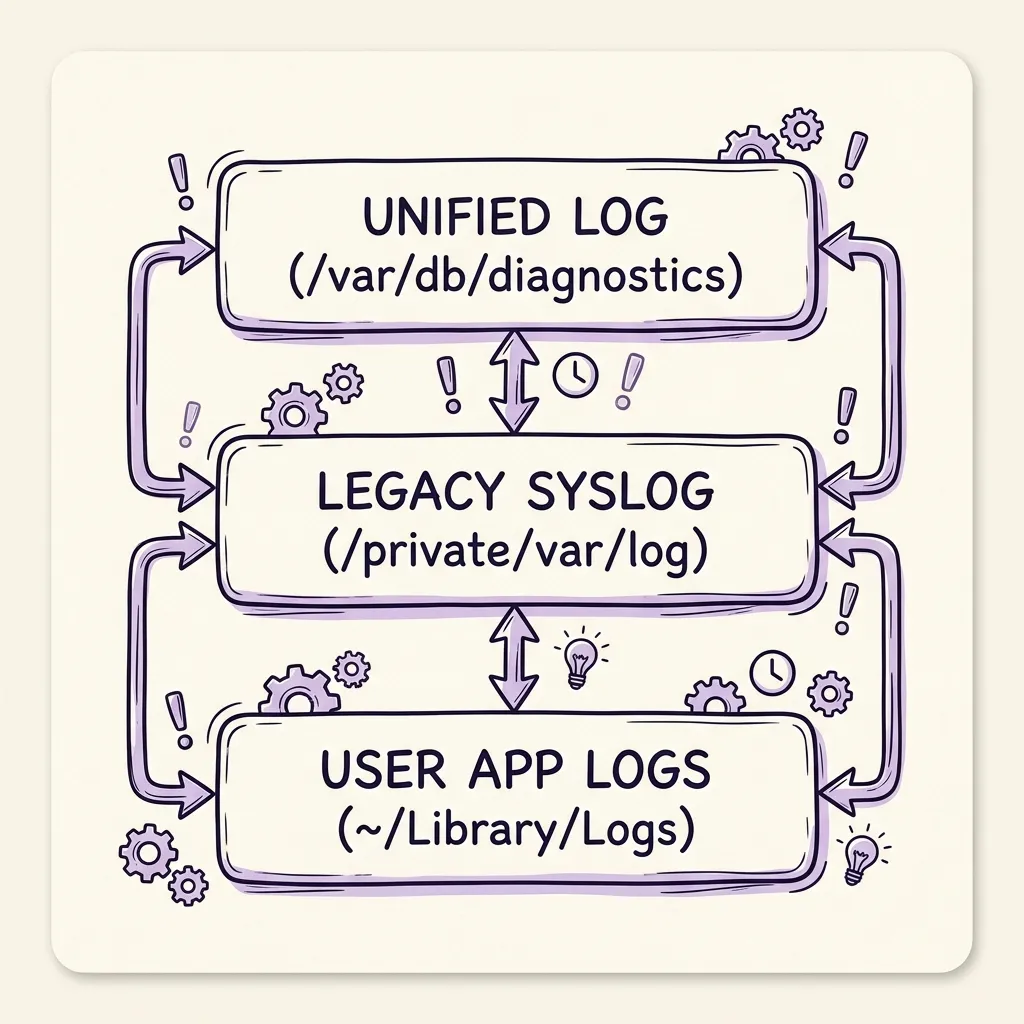 Image Prompt: A premium hand-drawn sketch note style illustration showing macOS logging layers, depicting Unified Log (/var/db/diagnostics), Legacy Syslog (/private/var/log), and User App Logs (~/Library/Logs) with hand-drawn arrows.
Why Deleting macOS Logs Is Generally a Bad Idea
Before you purge, understand the risks:
- Diagnostics break: System utilities and third-party apps need logs to troubleshoot crashes.
- Database corruption: Deleting from
/var/db/diagnostics/corrupts the logging database and crashes daemons. - Impaired troubleshooting: Cleared logs make investigating kernel panics or permission issues impossible.
- Cleaner apps are risky: Third-party “cleaner” tools delete unified logs blindly, degrading stability for minimal gain.
How to Manage and Clean macOS Logs Safely
If you must reclaim space, use these three options:
Option A: Query Logs with the Built-in log Utility
Unified logs are binary — no journalctl --vacuum equivalent. Use log to inspect, filter, and export to text:
# View last hour
log show --last 1h

# Export errors from last 24h
log show --predicate 'eventMessage contains "error"' --last 1d > ~/Desktop/error_logs.txt
Option B: Manual Log Cleanup
Target legacy and user-level logs first. Only touch unified logs as a last resort.
Legacy text logs:
sudo rm -rf /private/var/log/*User app logs:
rm -rf ~/Library/Logs/*Unified diagnostics (advanced — database reset):
# 1. Unload logging daemon
sudo launchctl unload /System/Library/LaunchDaemons/com.apple.logd.plist

# 2. Delete diagnostics database
sudo rm -rf /var/db/diagnostics/*

# 3. Reload daemon
sudo launchctl load /System/Library/LaunchDaemons/com.apple.logd.plistStopping logd and deleting unified logs is risky and can affect stability. Rebooting is preferred — macOS naturally rotates and cleans log indexes on boot.
Option C: Address the Real Storage Culprit
Most “System Data” bloat isn’t logs. The real culprits are typically:
- Time Machine local snapshots
- APFS snapshots from macOS updates
- Adobe or Logic Pro cache files
Before deleting logs, investigate these larger contributors first:
tmutil deletelocalsnapshots /As one expert notes: “Manual deletion of Time Machine local snapshots is fine, but APFS snapshots created by macOS updates are often the real culprit for persistent space issues.”
How Linux Logging Compares to macOS
| Feature | Linux (systemd) | macOS (Unified Log) |
|---|---|---|
| Log Location | /var/log/journal/ | /var/db/diagnostics/ |
| Management Tool | journalctl | log command |
| Vacuum by Size | ✅ --vacuum-size | ❌ Not supported |
| Vacuum by Time | ✅ --vacuum-time | ❌ Not supported |
| Configurable Limits | ✅ journald.conf | ❌ Limited control |
| Built-in Rotation | ✅ Automatic | ✅ Automatic via logd |
| Safe Manual Deletion | ✅ Via journalctl | ⚠️ Risky; reboot preferred |
Best Practices for macOS Log Management
✅ DO:
- Reboot periodically to let the system run maintenance scripts and rotate log databases.
- Delete local Time Machine snapshots with
tmutilfor immediate space reclamation. - Use Console.app to view and search logs safely (GUI, no deletion capability).
- Investigate Time Machine snapshots before touching logs.
❌ DON’T:
- Manually delete
/var/db/diagnostics/*unless troubleshooting a corrupted daemon. - Trust third-party “cleaner” apps blindly — they can break diagnostic registries.
- Delete logs expecting significant space recovery; the gain is usually minimal.
macOS Logging Command Cheat Sheet
Use these quick commands for daily log and storage management on macOS:
| Goal | Command / Action |
|---|---|
| View recent logs | log show --last 1h |
| Filter error messages | log show --predicate 'eventMessage contains "error"' |
| Export logs to file | log show --predicate 'eventMessage contains "error"' --last 1d > ~/Desktop/error_logs.txt |
| Purge local snapshots | tmutil deletelocalsnapshots / |
| View System Data details | Apple Menu → About This Mac → Storage |
| System reset | sudo shutdown -r now (reboots to reset logs naturally) |
Summary
Managing macOS logs means fixing root causes, not aggressive deletion:
- Unified logs are binary databases — let natural rotation handle them.
- Legacy and app logs clear safely with standard terminal commands.
- Time Machine snapshots are the main “System Data” bloat — target them first.
Frequently Asked Questions
Can I limit the macOS Unified Log database size?
No. Unlike journald.conf, macOS exposes no config files for hard limits on unified logging. The logd daemon handles caps dynamically.
Does macOS auto-clean old logs?
Yes. Daily, weekly, and monthly maintenance scripts rotate logs and purge expired diagnostics databases.
Are application cache files safe to delete?
Yes. ~/Library/Caches/ is generally safe and far more effective for reclaiming space than deleting system logs.
What to Read Next
- Finder File Management for Power Users — Optimize your workspace folder structures.
- Keyboard Mastery and Input Efficiency — Automate complex key sequences.


