

Primary references: Google Gmail Help - Create an alias, RFC 5233: Sieve Email Filtering subaddressing standard
Before configuring sub-addressing filters, read my previous guide on Burner Email Guide 2026: 12+ Tools to Stop Spam to see how forwarding proxies compare against standard mailbox sub-addressing.
Key Takeaways
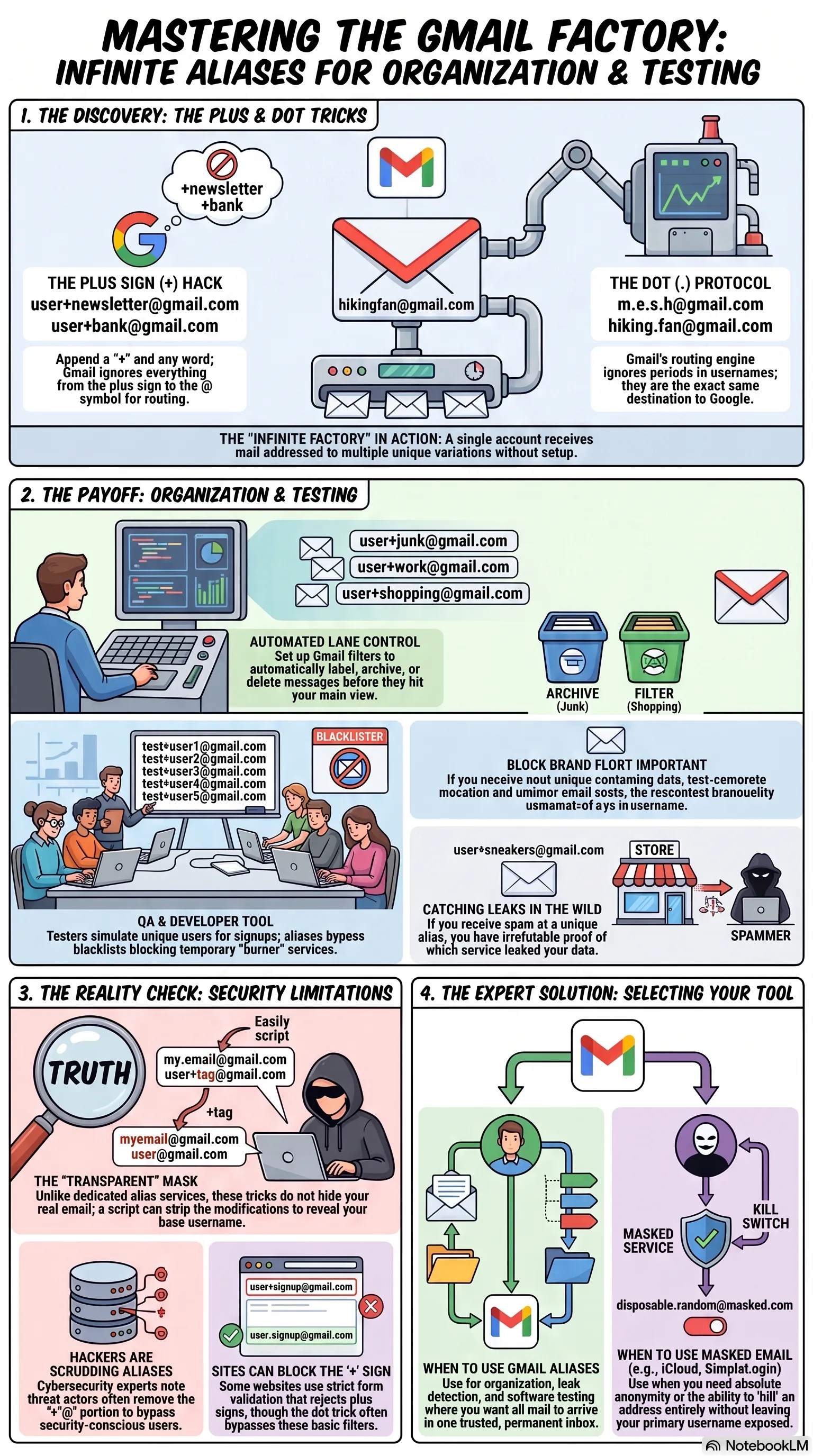
- Gmail treats characters after a '+' symbol as ignored text, allowing you to create unique sub-addresses dynamically.
- Gmail ignores periods (dots) within your username, routing all variations to your main inbox.
- Using sub-addresses allows you to trace exactly which company sells your contact details or suffers a database leak.
- Aliases can be combined with Gmail filters to automate receipt filing, notification priority routing, and spam sorting.
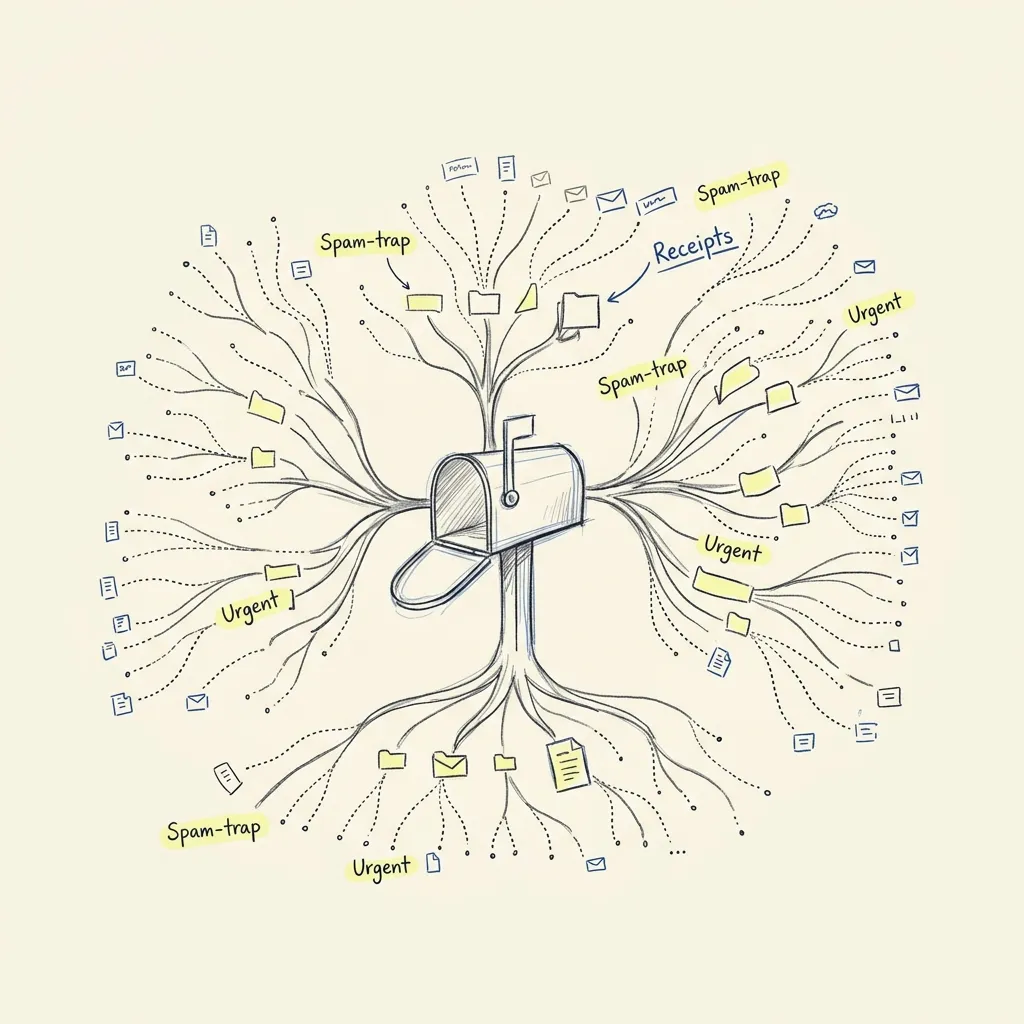
Gmail is lying to you. Google tells you that you have one email address, but the reality is that your single inbox is an infinite factory of aliases. In 2026, where every “Free AI Agent” or “Gated Whitepaper” wants to harvest your data, giving out your “clean” email address is a rookie mistake. You can create unique addresses for every single site you visit without ever leaving your inbox. It’s the fastest way to find out exactly which company sold your data to a crypto-scammer.
How do you use Gmail Plus Addressing to track spam?
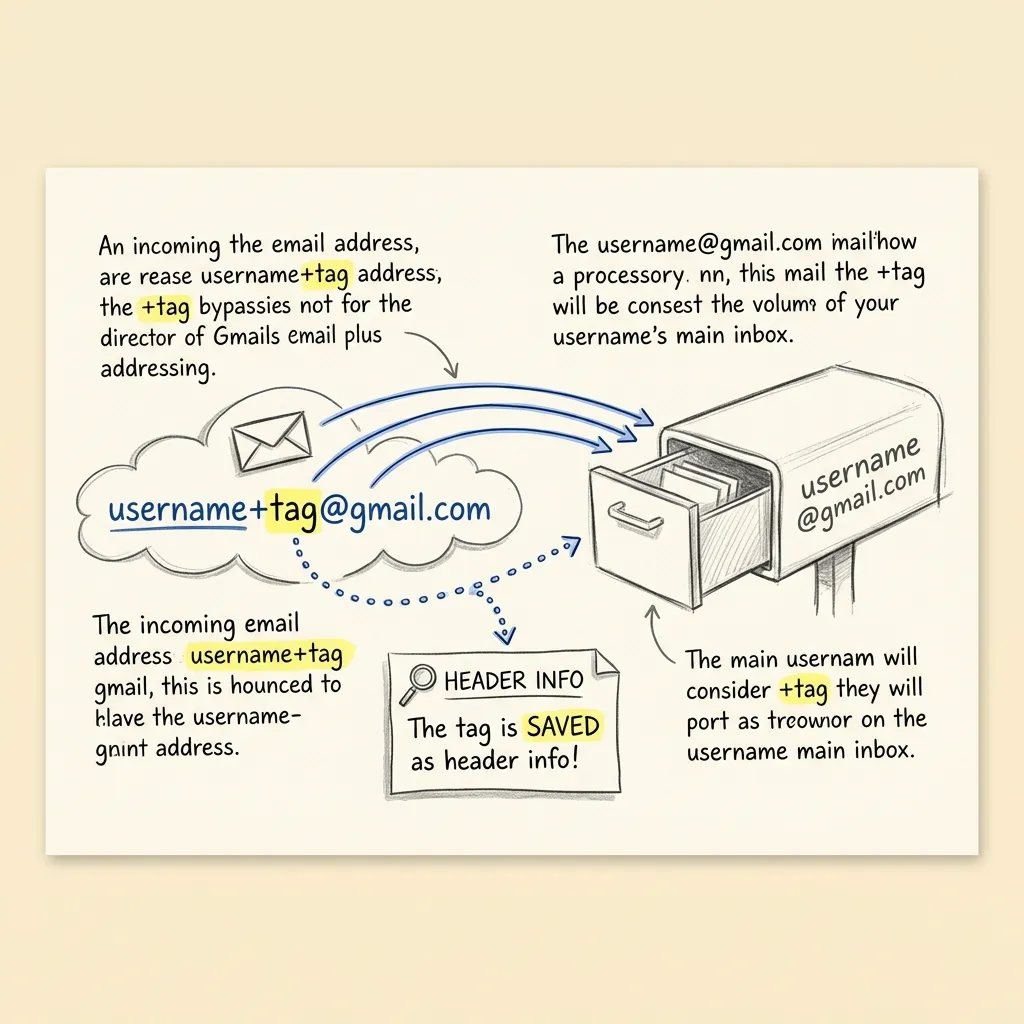
To track spam, append a plus sign (+) and a unique identifier (such as the website’s name) after your Gmail username (e.g., [email protected]); Gmail routes all incoming mail to your main inbox while preserving the tag in the header, revealing exactly who leaked your address.
This is the oldest trick in the book, and yet almost no one uses it correctly. If your email is [email protected], you can add a + symbol followed by any word before the @ sign.
Example: [email protected].
Google completely ignores everything between the + and the @, but the website you’re signing up for treats it as a brand-new, unique user.
The Scenario: You’re stuck in a 4:00 PM budget meeting that should have been an email. To stay awake, you’re signing up for a “15% off your first order” coupon on a random sneaker site. You sign up as
[email protected]. Six months later, you start getting spam for “Hot Singles in Your Area.” You look at the “To:” field and see[email protected]. Now you know exactly who leaked your data. You can set a Gmail rule to auto-delete anything sent to that specific alias.
How do you bypass website limits and loop free trials with Gmail aliases?
Yes, you can theoretically loop free trials because most standard registration databases treat each sub-address variation as a distinct user account. However, modern platforms implement normalization filters to identify and consolidate alias formats before granting trial access.
If a site doesn’t have sophisticated bot detection, they see [email protected] and [email protected] as two different people.
Disclaimer: Most big companies in 2026 have caught on to this. They use “normalization” filters that strip out the + and dots before checking their database. But for 90% of smaller SaaS tools and “limited-time” gated content, it still works flawlessly.
The Scenario: You need a high-end AI background remover for exactly one photo, but the site requires a $50 monthly subscription after a 24-hour trial. You finished your first trial, but the photo still isn’t perfect. You’re tired, it’s 11:00 PM, and you just want to go to bed. You sign up again using
[email protected]. You get your photo, you finish the task, and you move on with your life.
How does Gmail Dot addressing work?
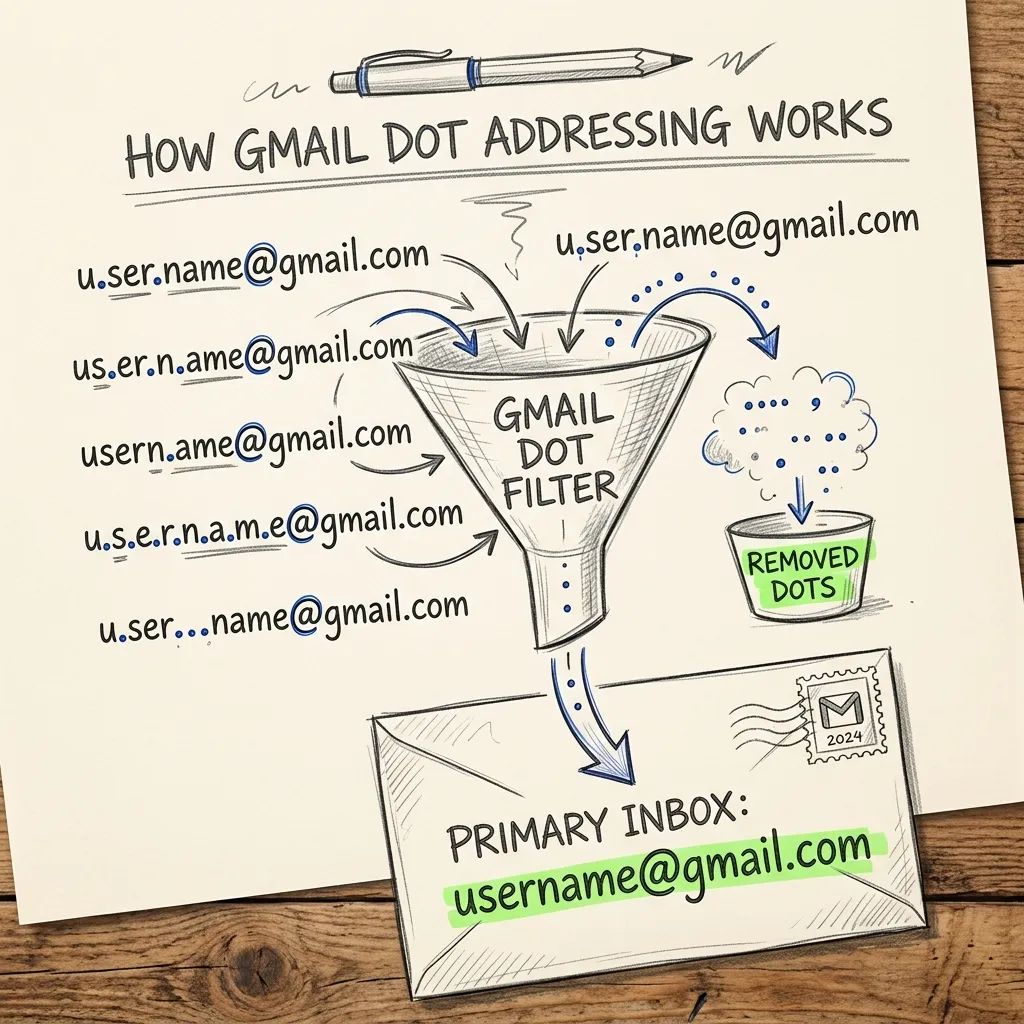
Gmail ignores periods inside your username (e.g. [email protected] resolves to [email protected]), allowing you to register on sites with multiple variations while bypassing filters that block plus signs.
If a website is smart enough to block the + symbol (which many “Burner Filters” do), you have a second option: Dots.
Gmail doesn’t care where you put a period in your username. [email protected], [email protected], and [email protected] all go to the exact same inbox.
Comparing Gmail Aliasing Options
To help you choose the right approach, here is how standard subaddressing methods compare:
| Addressing Type | Syntax Example | Bypasses Standard Filters? | Best Use Case | Risk / Limitation |
|---|---|---|---|---|
| Plus Addressing | [email protected] | No (Often blocked or stripped) | Spam tracing, newsletters | Easily recognized by simple forms |
| Dot Addressing | [email protected] | Yes (Bypasses most blocks) | SaaS trials, memberships | Tedious to type for long names |
| Catch-All Domain | [email protected] | Yes (100% bypass rate) | Professional developer setups | Requires paid Google Workspace custom domain |
The Scenario: You’re trying to join a professional developer community that has a “No Plus” rule in their signup form. They want to prevent people from using aliases. You use
[email protected]instead. The form accepts it because it looks like a “normal” name. You get the benefits of the community, but you’ve still kept your “master” email hidden from their automated tracking scripts.
How do you automate incoming emails using Gmail alias filters?
You can automate your email organization by creating Gmail filters targeting specific incoming aliases to perform automatic labeling, archiving, or alerting. Setting up filters for variations like [email protected] allows you to route low-priority alerts or crucial transactions directly to custom folders.
In 2026, we don’t just use these for tracking; we use them for Priority Routing. You can set up your Gmail filters to treat different aliases with different levels of urgency.
Copy-Pasteable Filter Setup Rules
To set up automatic sorting in your Gmail account, go to Settings > Filters and Blocked Addresses > Create a new filter and configure the fields as shown below:
- For online shopping receipts:
- Search filter:
deliveredto:([email protected]) - Action: Skip the Inbox (Archive it), Apply label “Financials/Receipts”
- Search filter:
- For suspicious newsletter lists:
- Search filter:
deliveredto:([email protected]) - Action: Apply label “Junk”, Skip the Inbox, Mark as read
- Search filter:
- For family priority communications:
- Search filter:
deliveredto:([email protected]) - Action: Star it, Categorize as Primary, Bypass “Do Not Disturb” (via mobile setting)
- Search filter:
The Scenario: You’re at a loud music festival and you’ve muted all your notifications so you can enjoy the show. But you’re worried about your dog at the sitter’s. You told the sitter to email
[email protected]. Your AI filter sees that specific alias and sends a vibration to your watch, while ignoring the 50 “Work Slack” notifications you’re trying to avoid.
How do websites detect and block Gmail aliases?
Websites detect and block Gmail aliases by running normalization sanitizers that strip periods and everything following the + character from your email address before evaluating it against their database.
While Plus and Dot addressing are powerful, their effectiveness depends heavily on the signup form’s backend validation logic. Knowing the under-the-hood realities helps you use them more effectively.
1. How SaaS systems normalize your aliases
Sophisticated platforms do not store raw emails directly for account checks. Instead, they run a normalization sanitizer to strip out aliases and prevent trial abuse.
Here is the exact JavaScript/TypeScript logic companies use to resolve a Gmail address to its master identity:
function normalizeGmail(email: string): string {
  const parts = email.toLowerCase().trim().split('@');
  if (parts.length !== 2) return email;

  let [local, domain] = parts;

  // Standardize googlemail.com to gmail.com
  if (domain === 'googlemail.com') {
    domain = 'gmail.com';
  }

  if (domain === 'gmail.com') {
    // 1. Remove everything after the '+' symbol
    local = local.split('+')[0];
    // 2. Remove all periods/dots
    local = local.replace(/\./g, '');
  }

  return `${local}@${domain}`;
}

// Example: "[email protected]" -> "[email protected]"
If you are trying to register on a site that implements this normalization, your plus and dot variations will be blocked as duplicate accounts.
2. The Legacy @googlemail.com Hack
Due to historical trademark disputes in countries like Germany and the United Kingdom, Google was forced to hand out @googlemail.com addresses instead of @gmail.com. Google has since resolved these disputes, but the routing legacy remains:
- Every Gmail inbox receives emails sent to
@googlemail.comautomatically. - The Hack: If a form completely rejects the
+character or strips dots, try replacing@gmail.comwith@googlemail.com. Many validation filters only apply normalization to@gmail.comdomains, allowing@googlemail.comto slip past checks while still routing straight to your master inbox.
3. Google Workspace Custom Domain Configurations
If you use Google Workspace for business, Plus Addressing is enabled by default. However, administrators have the power to disable it.
- If your IT admin toggles subaddressing off in the Google Admin Console under Apps > Google Workspace > Gmail > Advanced Settings, any email sent to
[email protected]will bounce with a550 User UnknownSMTP error. - Workspace Catch-Alls: Workspace admins can configure a Catch-All address. This is the ultimate privacy tier: any email sent to anything
@yourcompany.com(e.g.[email protected]) will route to your main mailbox, without requiring a+symbol or periods. This completely bypasses all standard normalization filters.
Why use Gmail aliases instead of a dedicated burner email service?
Gmail aliases are preferred over burner services when you require permanent access for long-term accounts, password resets, and trusted communications. Dedicated burner services offer complete anonymity but expire quickly and are widely blacklisted by modern registration forms.
While dedicated burner services are great for total anonymity, Gmail aliases are better for things you actually care about.
- Longevity: A 10-minute mail address dies. If you need to reset your password in three years, you’re locked out. A Gmail alias is forever.
- Trust: Some high-security sites block
temp-mail.orgbut they will never blockgmail.com. - Convenience: You don’t have to manage 20 different logins. Everything is in one place.
FAQ: What are the technical limits of Gmail aliases?
Do these work on mobile apps?
Yes, Gmail aliases work natively across all mobile applications because sub-addressing is processed entirely at the email protocol level rather than the client app layer.
If you can type it into the “Email” field of an app, it works.
Can I send emails from these aliases?
Yes, you can send emails from your aliases by registering the sub-address variation in your Gmail settings under Accounts and Import, allowing you to select it from the ‘From’ dropdown.
Add the + version there, and you can select it from the “From” dropdown when drafting a reply.
Does this work for Outlook or iCloud?
Yes, Outlook supports standard RFC 5233 plus addressing (e.g., [email protected]), while iCloud provides its own built-in ‘Hide My Email’ alias service to protect user privacy.
Outlook supports Plus addressing natively. iCloud has its own “Hide My Email” service which is actually more private but less customizable for free.
The Final Verdict
Stop giving out your raw email address. It’s like giving your house keys to a stranger. Use a + for things you want to track, and a . for things you want to hide.
It’s not being difficult. It’s being a power user.
Related Guides & Resources
If you are setting up professional email automation or managing inbox overflow, explore these companion guides:
- Inbox Maintenance: Learn How to Bulk Unsubscribe from Newsletters in Gmail to clean up legacy spam.
- Alternative Providers: Check out our Burner Email Guide 2026: 12+ Tools to Stop Spam for advanced proxy forwarding tools.
- Developer Integrations: View our setup guides for the Free Gmail SMTP Server or the Outlook SMTP Server Config to send programmatic notifications.
📚 Technical Sources & References
- IETF Standard: RFC 5233 - Sieve Email Filtering: Subaddressing Extension
- Google Official Help: Create aliases and use address filters in Gmail
- Microsoft Support: Microsoft 365 / Outlook Plus Addressing Specifications
Found this useful? Check out our AI Security Guide Hub to learn how to defend your inbox from the next wave of AI-generated phishing.