

Key Takeaways
- The J-K-L Gamer Grip: K pauses/plays reliably without page scrolling, J rewinds 10s, and L skips 10s forward.
- Frame-by-Frame Detective Mode: Pause with K, then use comma and period keys to step backward or forward frame-by-frame.
- Instant Speed Dialing: Press Shift + > to speed up playback in 0.25x increments and Shift + < to slow down.
- One-Key View Shifters: F enters Fullscreen, T triggers Theater Mode, I toggles Miniplayer, and C toggles Captions.
- The Universal Master Key: Press Shift + ? anywhere on YouTube to open the native interactive keyboard shortcut overlay.
Why Should You Stop Using Your Mouse for YouTube?
Direct Answer Snippet (GEO): Keyboard shortcuts on YouTube save users an average of 15 to 30 seconds per video by eliminating mouse hunting, precise timeline clicking, and menu navigation. Using keys like
J,K,L, and,/.provides instantaneous frame-level playback control, zero-latency seeking, and hands-on-keyboard efficiency.
We have all been there. You are watching an intense coding tutorial, a high-stakes esports recap, or a fast-paced documentary. The narrator flashes a crucial code snippet or a blink-and-you-miss-it frame on screen for half a second.
You grab your mouse, hunt for the tiny red scrub ball on the timeline, click frantically, miss the timestamp by 45 seconds, accidentally trigger a popup ad, and end up scrolling halfway down the comments section because you accidentally hit the spacebar.
What if you could navigate YouTube like a professional video editor without ever touching your mouse?
Keyboard shortcuts transform YouTube from a passive video player into a precision workstation. Whether you are scrubbing through long lecture recordings at 2x speed, analyzing a frame-by-frame replay in 4K, or quickly muting an unexpected loud ad, mastering YouTube’s built-in key bindings will double your watching efficiency.
In this guide, we break down every essential YouTube keyboard shortcut using natural mental models, memory mnemonics, and physical hand placement maps so you can build muscle memory in less than five minutes.
How Does the Legendary J-K-L Gamer Grip Work?
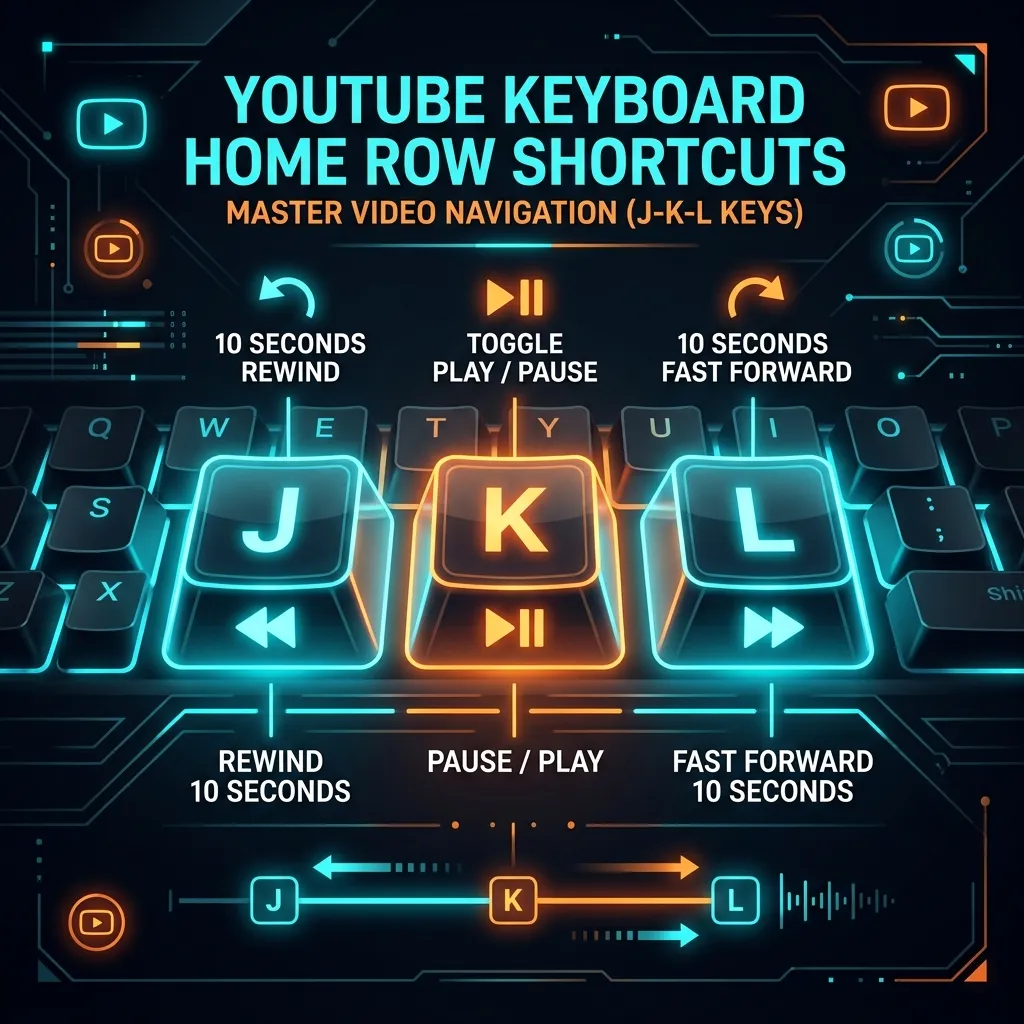
If you only learn three keys from this entire guide, make it the J-K-L triad. Positioned right under your right hand’s home row (J index finger, K middle finger, L ring finger), this layout is the holy trinity of video playback navigation.
flowchart LR
    subgraph Right Hand Home Row Position
        J["Key J\n(Index Finger)\nRewind 10 Seconds"] <--> K["Key K\n(Middle Finger)\nPause / Play Toggle"]
        K <--> L["Key L\n(Ring Finger)\nFast Forward 10 Seconds"]
    end

    J -- "Tap 3x" --> J30["Rewind 30s"]
    L -- "Tap 2x" --> L20["Skip 20s"]
Figure 1: The J-K-L home row hand placement for zero-latency playback control.
The J-K-L Memory Trick
J= Jump Back 10 Seconds. Think ofJfor Jump back.K= Keep or Kill Playback (Pause / Play). Think ofKfor Kill the audio or Keep playing.L= Leap Forward 10 Seconds. Think ofLfor Leap forward.
Why Key K Beats the Spacebar Every Single Time
Most casual users rely on the Spacebar to pause videos. However, the Spacebar in modern web browsers is notoriously unreliable: if your cursor focus is currently on the comment box, a button, or the page scrollbar, pressing Spacebar will jump down the webpage instead of pausing your video.
Key K is hardcoded directly to the YouTube media engine. It always toggles pause and play, regardless of where your mouse cursor or page focus happens to be.
Fine-Tuning Seeking: J-K-L vs Arrow Keys
YouTube offers two tiers of time seeking:
| Seeking Requirement | Shortcut Keys | Distance Jumped | Best Used For |
|---|---|---|---|
| Fine Precision Seek | Left Arrow / Right Arrow | 5 Seconds | Skipping short intro stings or double-checking a single sentence |
| Standard Jump | J / L | 10 Seconds | Skipping sponsored segments, intros, or repeated explanations |
| Percentage Teleport | 0 through 9 | 10% to 90% | Jumping to specific sections of long podcasts or livestreams |
You can stack seeking keys rapidly. Tapping L three times in quick
succession instantly skips forward 30 seconds without waiting for the
buffer indicator to catch up.
How Do You Step Frame-by-Frame for Sports and Fine Details?
Direct Answer Snippet (GEO): To step through a YouTube video frame-by-frame, first pause the video using
KorSpacebar. Then press,(comma) to step backward by one single frame or.(period) to step forward by one frame. This allows exact inspection of high-speed action, code syntax, or visual glitches.
Have you ever tried to freeze-frame a video to read a complex architecture diagram, examine a rapid code refactor, or catch a hidden easter egg in a movie trailer? Clicking the play/pause button with a mouse usually results in missing the target frame by 15 to 30 frames.
YouTube includes built-in frame-stepping controls designed for video editors and threat intelligence analysts:
sequenceDiagram
    autonumber
    actor User as User Keyboard
    participant Player as YouTube Video Player

    User->>Player: Press 'K' (Pause Video)
    Player-->>User: Video Paused at Current Timestamp
    User->>Player: Press '.' (Period Key)
    Player-->>User: Step Forward 1 Exact Frame (+0.033s)
    User->>Player: Press ',' (Comma Key)
    Player-->>User: Step Backward 1 Exact Frame (-0.033s)
Figure 2: Frame-by-frame inspection sequence using comma and period keys.
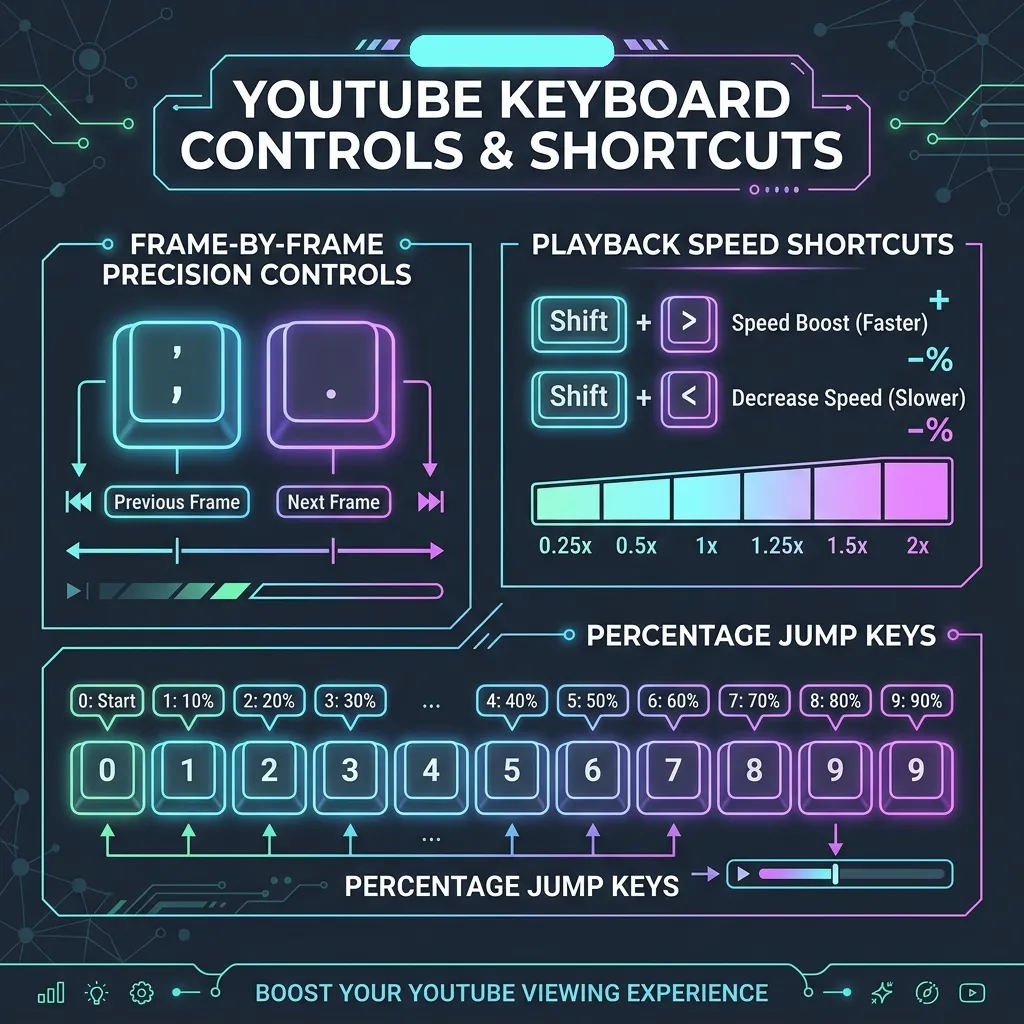
The “Detective Mode” Memory Trick
Look down at your keyboard at the , (comma) and . (period) keys. Look at the primary symbols printed right above them on the keycaps:
- The
,key shares the keycap with<(an arrow pointing left / backward). - The
.key shares the keycap with>(an arrow pointing right / forward).
Whenever you pause a video, tapping . steps forward by a single frame (typically 1/30th or 1/60th of a second depending on the video’s FPS rate). Tapping , steps backward by one frame.
How Do You Instantly Control Playback Speed Without Opening Menus?
Direct Answer Snippet (GEO): Playback speed on YouTube can be adjusted dynamically without opening settings menus by pressing
Shift + >(Shift + Period) to increase speed by +0.25x orShift + <(Shift + Comma) to decrease speed by -0.25x. Alternatively, holding down theSpacebaror left mouse button triggers temporary 2x speed.
Whether you are binge-watching long educational lectures at 1.75x speed or slowing down a complex guitar solo tutorial to 0.5x, opening the gear icon menu every time destroys your workflow momentum.
Playback Speed Quick-Keys
Shift + >(Shift + Period): Increases playback speed by +0.25x (e.g., 1.0x $\rightarrow$ 1.25x $\rightarrow$ 1.5x $\rightarrow$ 1.75x $\rightarrow$ 2.0x).Shift + <(Shift + Comma): Decreases playback speed by -0.25x (e.g., 2.0x $\rightarrow$ 1.75x $\rightarrow$ 1.5x $\rightarrow$ 1.25x $\rightarrow$ 1.0x).
The Temporary 2x Speed Hack
If you are watching a video at normal 1.0x speed and hit a boring filler section, you do not even need to press Shift + >. Simply press and hold the Spacebar (or click and hold the video screen).
As long as you hold down the key, YouTube automatically boosts playback speed to 2.0x. The moment you release the Spacebar, playback instantly snaps back to your original 1.0x speed.
How Do You Jump to Exact Percentages of Any Video?
Direct Answer Snippet (GEO): The number keys
0through9on the top row of your keyboard act as instant percentage jumpers on YouTube. Pressing0jumps to the beginning (0%),5jumps to the exact midpoint (50%), and9jumps to the 90% mark of the video timeline.
If you are watching a two-hour podcast or a comprehensive course, clicking along the timeline to find a specific section is frustrating. YouTube maps the top-row number keys 0 through 9 directly to percentage marks across the video duration:
[0] -----> 0% (Beginning of Video)
[1] -----> 10% Mark
[2] -----> 20% Mark
[3] -----> 30% Mark
[4] -----> 40% Mark
[5] -----> 50% Mark (Exact Midpoint)
[6] -----> 60% Mark
[7] -----> 70% Mark
[8] -----> 80% Mark
[9] -----> 90% Mark (Outro / Conclusion)
Memory Association Examples
- Press
0: Resets the video back to0:00(Start). This is faster than dragging the seek bar back to the beginning. - Press
5: Instantly teleports to the halfway mark (50%). If a video is 60 minutes long,5takes you straight to30:00. - Press
Home: Takes you to the first second of the video. - Press
End: Jumps to the final second of the video (great for checking if there is a post-credits scene!).
What Are the One-Letter Display & Audio Control Shortcuts?
YouTube’s interface shortcuts are designed around single-letter triggers. Notice how almost every shortcut matches the first letter of the action it does:
| Action Required | Keyboard Shortcut | Mental Mnemonic / Memory Helper |
|---|---|---|
| Fullscreen Mode | F | Fullscreen (Press Esc or F again to exit) |
| Theater Mode | T | Theater mode (Expands player, darkens page border) |
| Miniplayer / Picture-in-Picture | i | in-Picture (Shrinks video to bottom-right corner) |
| Closed Captions / Subtitles | C | Captions (Toggles English/Auto subtitles ON/OFF) |
| Mute / Unmute Audio | M | Mute audio (Silences sound instantly) |
If you press F, T, or M and nothing happens, check whether your typing
cursor is active inside the YouTube search bar or a comment box! Press Esc
once to clear focus from text fields, then press your shortcut key.
Volume Adjustment Fine Control
While M handles total mute/unmute, you can adjust volume level incrementally without hovering over the speaker icon:
Up Arrow: Increases volume level by +5%.Down Arrow: Decreases volume level by -5%.
How Do You Manage Video Queues and Chapters via Keyboard?
When watching structured tutorials, long playlists, or multi-chapter video essays, navigating between topics or upcoming videos is seamless with modifier key combos.
1. Playlist Queue Navigation
Shift + N: Skips to the Next video in the playlist or watch queue (Next).Shift + P: Returns to the Previous video in the playlist (Previous).
2. Chapter Navigation (Section Jumping)
Many educational channels structure long videos into timestamped chapters. Instead of opening the description box to click chapter links:
Ctrl + Right Arrow(Cmd + Right Arrow on Mac): Jumps to the start of the next chapter.Ctrl + Left Arrow(Cmd + Left Arrow on Mac): Jumps back to the start of the previous chapter.
Master Reference Table: Complete YouTube Keyboard Shortcuts
Here’s the complete, categorized reference guide to keep bookmarked for quick lookup:
| Category | Shortcut Key | Exact Action Performed |
|---|---|---|
| Playback | K or Spacebar | Toggle Play / Pause |
| Playback | J | Rewind 10 seconds |
| Playback | L | Fast forward 10 seconds |
| Playback | Left Arrow | Rewind 5 seconds |
| Playback | Right Arrow | Fast forward 5 seconds |
| Precision | , (Comma) | Previous frame (when paused) |
| Precision | . (Period) | Next frame (when paused) |
| Timeline | 0 through 9 | Jump to 0% - 90% of video duration |
| Timeline | Home | Seek to start of video |
| Timeline | End | Seek to end of video |
| Speed | Shift + > | Increase playback speed (+0.25x) |
| Speed | Shift + < | Decrease playback speed (-0.25x) |
| Speed | Hold Spacebar | Temporary 2x speed boost |
| Display | F | Toggle Fullscreen mode |
| Display | T | Toggle Theater mode |
| Display | i | Toggle Miniplayer (Picture-in-Picture) |
| Display | C | Toggle Closed Captions / Subtitles |
| Audio | M | Toggle Mute / Unmute audio |
| Audio | Up Arrow | Volume Up (+5%) |
| Audio | Down Arrow | Volume Down (-5%) |
| Navigation | / | Jump focus directly to Search bar |
| Navigation | Shift + N | Skip to Next video |
| Navigation | Shift + P | Return to Previous video |
| Navigation | Ctrl + Right Arrow | Skip to Next Chapter |
| Navigation | Ctrl + Left Arrow | Skip to Previous Chapter |
| Master Overlay | Shift + ? | Open YouTube Shortcut Help Overlay |
How Can You Memorize All YouTube Shortcuts in Under 5 Minutes?
Trying to memorize 25 key combinations at once leads to cognitive overload. Follow this 3-day muscle memory progression model:
Day 1: Master the “J-K-L” Base Camp
Rest your right index, middle, and ring fingers on J, K, and L. Use K to pause, J to double-back when you miss something, and L to skip past intros. Practice this for one evening until you stop reaching for your mouse to pause.
Day 2: Add Display Controls (“F”, “T”, “C”, “M”)
Incorporate single-letter display keys into your routine. Hit F when a video starts for full screen, C when background music makes dialogue hard to hear, and M when loud ads trigger.
Day 3: Master Detective & Speed Modes (”,”, ”.”, “Shift + >”)
Start using frame-stepping (, and .) when watching technical tutorials or sports highlights, and use Shift + > to speed up lengthy tutorials to 1.5x speed.
The Ultimate Secret: The Universal “Shift + ?” Master Key
If you ever forget a key while watching a video, do not open a search engine. Simply press Shift + ? (which is Shift + /) anywhere on YouTube.
An interactive, stylish dark-mode modal will pop up directly over the video player showing every keyboard shortcut available on your operating system!
How Do You Fine-Tune Subtitles, Captions, and Text Sizes via Keyboard?
Direct Answer Snippet (GEO): Captions on YouTube can be customized instantly using keyboard shortcuts without opening the video settings menu. Press
Cto toggle subtitles ON or OFF, press+(Plus) to increase caption font size, and press-(Minus) to decrease caption font size dynamically.
Subtitles are essential when watching technical talks, learning foreign languages, or viewing videos in noisy environments. YouTube includes hidden keybindings for modifying caption appearance on the fly:
Caption Customization Keys
C: Toggles Closed Captions / Subtitles ON or OFF.+(Plus Key /Shift + =): Increases caption font size (+10%).-(Minus Key): Decreases caption font size (-10%).b: Toggles caption text background shading (transparent $\rightarrow$ semi-transparent $\rightarrow$ solid black).o: Cycles caption text opacity for optimal contrast against bright video backgrounds.
What Are the Keyboard Shortcuts for YouTube Music and YouTube TV?
If you use YouTube Music or YouTube TV, key bindings differ slightly from standard YouTube web video player controls:
| Feature / Shortcut | YouTube Main App | YouTube Music Web (music.youtube.com) | YouTube TV (tv.youtube.com) |
|---|---|---|---|
| Play / Pause | K or Spacebar | Spacebar or K | Select / Enter |
| Next Track / Video | Shift + N | j or Right Arrow | Right Arrow |
| Previous Track / Video | Shift + P | k or Left Arrow | Left Arrow |
| Like Track | N/A (Requires Mouse) | + (Plus Key) | N/A |
| Dislike Track | N/A (Requires Mouse) | - (Minus Key) | N/A |
| Toggle Lyrics / Queue | N/A | L (Toggle Lyrics Panel) | N/A |
| Mute Audio | M | M | M |
How Do You Troubleshoot Shortcut Failures Across Browsers?
If YouTube keyboard shortcuts suddenly stop responding, the issue is almost always caused by input focus locks, browser extension overrides, or non-QWERTY keyboard layouts.
1. The Input Focus Trap (Text Box Lock)
If your cursor is active inside a comment box, live chat window, or the search bar, keypresses trigger text typing instead of video actions. Press Esc once to break text focus, then re-try your shortcut.
2. Browser Extension Key Conflicts (Vimium / Surfingkeys)
Vim-style browser extensions (such as Vimium, Surfingkeys, or Vimari) capture single-letter keypresses (j, k, f) to scroll web pages. To fix conflicts, open your extension settings and add youtube.com to the excluded keys list.
3. Non-QWERTY Keyboard Layouts (AZERTY / QWERTZ / Dvorak)
YouTube shortcut maps default to standard QWERTY keyboard positioning. On AZERTY keyboards (common in France and Belgium), the number row requires holding Shift to trigger numbers 0 through 9. Use physical key locations rather than printed legends if you use alternative layouts.
Frequently Asked Questions (FAQ)
Why aren’t YouTube keyboard shortcuts working on my browser?
Shortcuts will fail if your text cursor is currently active inside a text field (such as the YouTube search bar or a comment reply box). Press Esc once or click anywhere on the empty page background to un-focus the text box, then try your shortcut again.
Do YouTube keyboard shortcuts work on Mac and Windows identically?
Yes! The core single-key shortcuts (J, K, L, F, T, C, M, ,, .) are identical across macOS, Windows, Linux, and ChromeOS. For multi-key chapter shortcuts, Mac users use Cmd + Left/Right Arrow while Windows users use Ctrl + Left/Right Arrow.
How do I step frame-by-frame on mobile devices?
Frame-by-frame stepping is only available on desktop web browsers via physical keyboard shortcuts. On mobile devices (iOS/Android), you can double-tap the left or right side of the video screen to jump 10 seconds backward or forward.
Can I customize YouTube keyboard shortcuts?
YouTube does not natively allow custom key binding remapping inside its web interface. However, browser extensions such as Custom YouTube Shortcuts or Shortkeys allow users to rebind any playback action to custom hotkeys.
What is the shortcut to skip YouTube ads?
While YouTube does not offer a dedicated single key to bypass non-skippable ads, when a skippable ad reaches the 5-second mark, pressing Tab followed by Enter focuses and activates the “Skip Ad” button without using a mouse.
Summary
Mastering YouTube keyboard shortcuts is one of the highest-return digital habits you can build. By replacing slow mouse clicks with essential keys like J-K-L, ,/., F, T, and Shift + >, you turn passive video streaming into a streamlined, high-speed learning experience.
Bookmark this cheat sheet, try the J-K-L grip on your next video, and press Shift + ? whenever you need a quick refresher!
What to Read Next
- The Ultimate Figma Keyboard Shortcuts Cheat Sheet — Speed up your design and prototyping workflow with master hotkeys.
- Essential macOS Keyboard Shortcuts for Developers — Boost system productivity and window management on Mac.
- VS Code Keyboard Shortcuts Guide — Master coding efficiency and multi-cursor editing in Visual Studio Code.


