

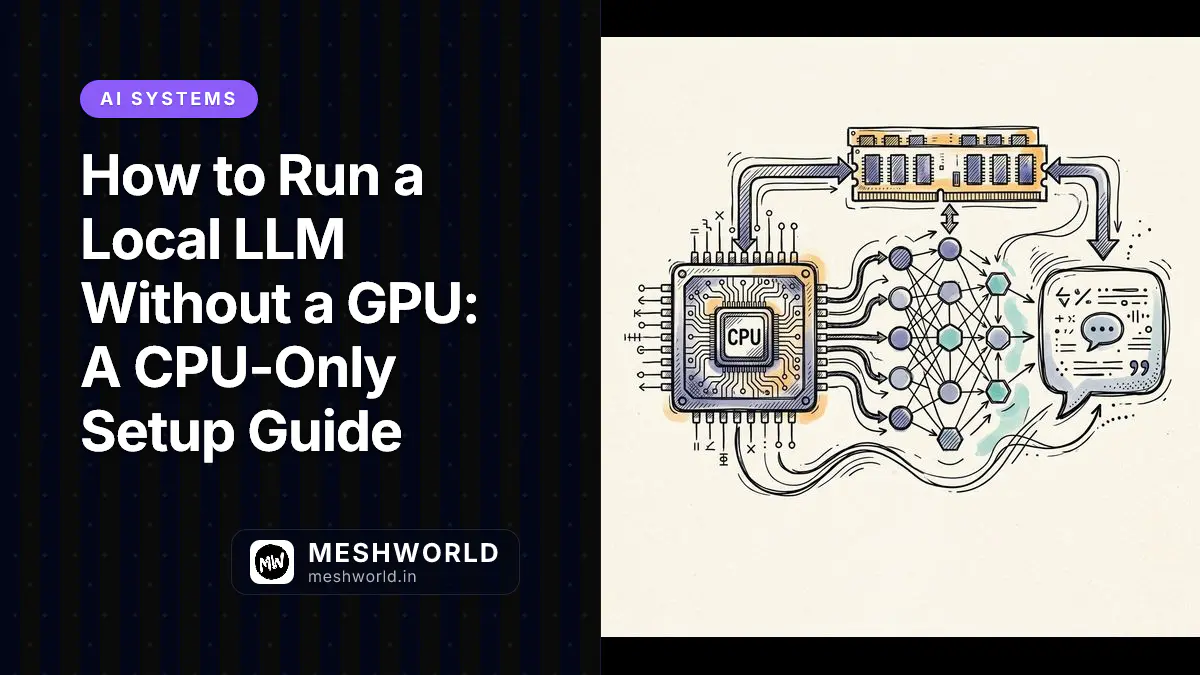
How to Run a Local LLM Without a GPU: A CPU-Only Guide
Running open-weight large language models locally used to require an expensive dedicated NVIDIA GPU with 16 GB+ of VRAM. Modern C/C++ inference runtimes and 4-bit quantization formats allow you to execute models like Llama 3.2, Mistral, and Qwen entirely on your system’s CPU.
Whether you’re developing on a 16 GB laptop, a refurbished workstation, or an Apple Silicon Mac, CPU-only inference delivers a private, offline, and zero-cost environment for code generation, document summarization, and local AI agent tooling.
Key Takeaways
- Tools like llama.cpp, Ollama, and LM Studio run quantized open-weight models entirely on system RAM using CPU SIMD vector instructions.
- System RAM dictates your model ceiling: plan 0.5–1 GB of RAM per billion parameters at 4-bit quantization (Q4_K_M).
- GGUF memory-mapped loading (mmap) allows models larger than available physical memory to load instantly and page in on demand.
- CPU inference throughput averages 5–15 tokens/sec for 7B models on modern 8-core x86/ARM processors: 5–10x slower than discrete GPUs but fully functional.
- Apple Silicon unified memory delivers near-GPU speeds (15–35 tok/s for 7B–13B models) because CPU cores access memory bandwidth up to 400 GB/s.
How do you run a local LLM on a CPU in 60 seconds?
If you need an immediate working setup on a standard laptop or desktop without configuring C++ compilers:
- Install Ollama (one-command setup):
bash
curl -fsSL https://ollama.com/install.sh | sh - Run a CPU-optimized 3B model:
bash
ollama run llama3.2:3b - Hardware Rule of Thumb:
- 8 GB RAM: Run 1B–3B models (
llama3.2:3b,phi4-mini,gemma3:2b). - 16 GB RAM: Run 7B–8B models (
mistral:7b,llama3.1:8b,qwen3:8b). - 32 GB RAM: Run 13B–14B models (
llama3.1:13b,qwen2.5:14b).
- 8 GB RAM: Run 1B–3B models (
- Yes, it’s fully supported. Tools like llama.cpp, Ollama, and LM Studio run quantized models entirely on host CPUs.
- Use GGUF format. GGUF (GGML Universal File) is the single-file container designed specifically for CPU-first tensor execution.
- Q4_K_M is the sweet spot. 4-bit medium quantization cuts file size by ~70% while preserving ~98% of full FP16 model accuracy.
- SIMD defines performance. AVX2 is mandatory on x86; AVX-512 doubles vector throughput; ARM NEON powers Apple Silicon.
What are the key concepts for CPU-only LLM inference?
Understanding the underlying engine architecture helps you choose the right model size, quantization format, and memory parameters.
| Term | What it is | Why it matters for CPU inference |
|---|---|---|
| CPU inference | Executing matrix multiplication on general-purpose CPU cores. | Default fallback when no GPU is present; utilizes hardware SIMD kernels (AVX2, AVX-512, NEON). |
| Quantization | Reducing weight precision from FP16 (16-bit) to 8, 5, 4, or 2-bit integers. | Shrinks model footprint and memory bandwidth demands by up to 75% with minimal accuracy loss. |
| GGUF Format | Binary file format bundling model weights, tokenizer, and hyperparameter metadata. | Created by Georgi Gerganov for llama.cpp; enables fast memory-mapped file loading. |
| Q4_K_M | 4-bit K-quant medium preset in GGUF. | The industry standard balance of memory size (~4.5 bits/weight) and output quality. |
| llama.cpp | High-performance C/C++ LLM inference engine with zero third-party dependencies. | The core backend powering Ollama, LM Studio, Jan AI, and local API servers. |
| Ollama | Local daemon and CLI wrapping llama.cpp into a Docker-like model management workflow. | Automatically manages model pulls, system prompts, and exposes an OpenAI-compatible REST API. |
| LM Studio | Desktop GUI application for exploring, downloading, and running GGUF models offline. | Provides a user-friendly chat interface, parameter sliders, and local API server. |
| KV Cache | Memory buffer storing attention Key and Value vectors for previously generated tokens. | Memory scales linearly with context length; can consume several gigabytes at 16K+ context. |
| mmap | Operating system virtual memory mapping (mmap()). | Allows llama.cpp to map GGUF files directly from storage into virtual memory space instantly. |
| Unified Memory | Shared architecture in Apple Silicon (M-series chips) where CPU and GPU access one RAM pool. | Allows Mac laptops to allocate up to 75%+ of system memory to LLM execution at high bandwidth. |
How does CPU-only LLM inference work under the hood?
When you pass a text prompt to a local CPU inference runtime like llama.cpp or Ollama, the engine executes a five-stage pipeline optimized for vector SIMD operations:
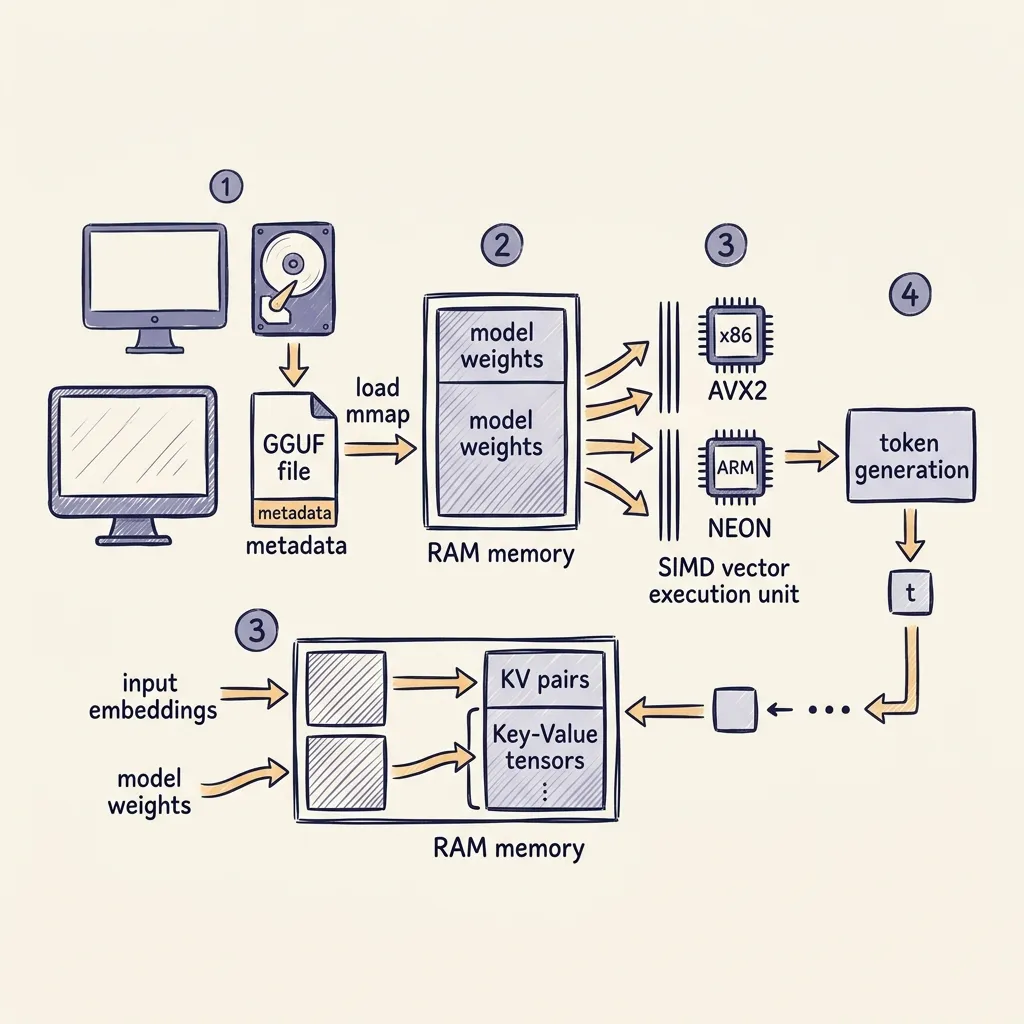
- Memory-Mapped Loading (
mmap): Instead of copying gigabytes of weights into process heap memory, llama.cpp issues anmmap()syscall. The OS maps the GGUF file from your SSD into address space. Pages are loaded into RAM on demand, reducing startup times to under a second. - Tokenizer Processing: The input string is converted into integer token IDs using the embedded GGUF tokenizer metadata.
- SIMD Tensor Multiplication: During the transformer forward pass, GEMM (General Matrix Multiply) operations execute across available CPU threads using hand-tuned vector assembly kernels:
- x86 Systems: Uses 256-bit AVX2 or 512-bit AVX-512 instructions.
- ARM Systems: Uses 128-bit NEON vector instructions.
- Key-Value (KV) Cache Allocation: Attention context state vectors are written to the KV cache in RAM. Longer context windows (
--ctx-size) increase KV cache memory consumption. - Autoregressive Sampling: The model predicts the next token ID, appends it to the context window, and loops until an end-of-sequence (
EOS) token is emitted.
How do you install and run local LLMs on CPU?
You can choose between three primary workflows depending on your preferred interface: Ollama (CLI & background service), llama.cpp (pure C++ CLI), or LM Studio (GUI application).
Path 1: Ollama (Recommended for most developers)
Ollama automates model downloading, quantization selection, and local API hosting behind a clean command-line interface.
1. Install Ollama
On macOS or Linux, run the official installation script:
curl -fsSL https://ollama.com/install.sh | shOn Windows, download the official installer executable from ollama.com/download.
2. Download and run a CPU-friendly model
For systems with 8 GB of RAM, pull a 3B model:
ollama run llama3.2:3bFor systems with 16 GB of RAM, pull an 8B model:
ollama run llama3.1:8b3. Query via the OpenAI-compatible REST API
Ollama exposes a local API server at port 11434:
curl http://localhost:11434/v1/chat/completions \
  -H "Content-Type: application/json" \
  -d '{
    "model": "llama3.2:3b",
    "messages": [{"role": "user", "content": "Explain CPU vectorization in 2 sentences."}]
  }'
4. Force CPU mode on hybrid systems
If your system has a discrete GPU but you want to force CPU execution, launch Ollama with CUDA disabled:
CUDA_VISIBLE_DEVICES=-1 ollama servePath 2: Building llama.cpp from Source (Maximum control & performance)
Building llama.cpp manually allows you to enable CPU native vector flags (-DGGML_NATIVE=ON) targeted specifically to your processor architecture.
1. Install build dependencies
On Ubuntu / Debian:
sudo apt update && sudo apt install -y git build-essential cmakeOn macOS:
brew install git cmake2. Clone and compile llama.cpp
git clone https://github.com/ggml-org/llama.cpp
cd llama.cpp
cmake -B build -DGGML_NATIVE=ON
cmake --build build --config Release -j$(nproc)
3. Download a GGUF model from Hugging Face
Use the Hugging Face CLI to download pre-quantized weights directly:
pip install -U "huggingface_hub[cli]"

huggingface-cli download bartowski/Llama-3.2-3B-Instruct-GGUF \
  Llama-3.2-3B-Instruct-Q4_K_M.gguf \
  --local-dir models
4. Execute CPU inference
Run a CLI chat session using 8 CPU threads:
./build/bin/llama-cli \
  -m models/Llama-3.2-3B-Instruct-Q4_K_M.gguf \
  -p "Draft a technical summary of memory-mapped files." \
  -t 8 -c 4096 -n 256
Launch a standalone OpenAI-compatible local server:
./build/bin/llama-server \
  -m models/Llama-3.2-3B-Instruct-Q4_K_M.gguf \
  -c 4096 --host 127.0.0.1 --port 8080 -ngl 0
Path 3: LM Studio (Desktop Graphical Interface)
LM Studio provides a native desktop UI for searching Hugging Face GGUF models, configuring context parameters, and monitoring CPU utilization.
- Download and launch LM Studio from lmstudio.ai.
- Click the Search icon and query
Llama 3.2 3B InstructorMistral 7B. - Select the Q4_K_M build variant from the download panel.
- Open the Chat tab, select the loaded model at the top bar, and configure CPU Threads in the right sidebar to match your physical CPU core count.
- Toggle the Local Server panel to start a background API endpoint compatible with OpenAI client SDKs.
Which hardware configuration fits your CPU-only LLM needs?
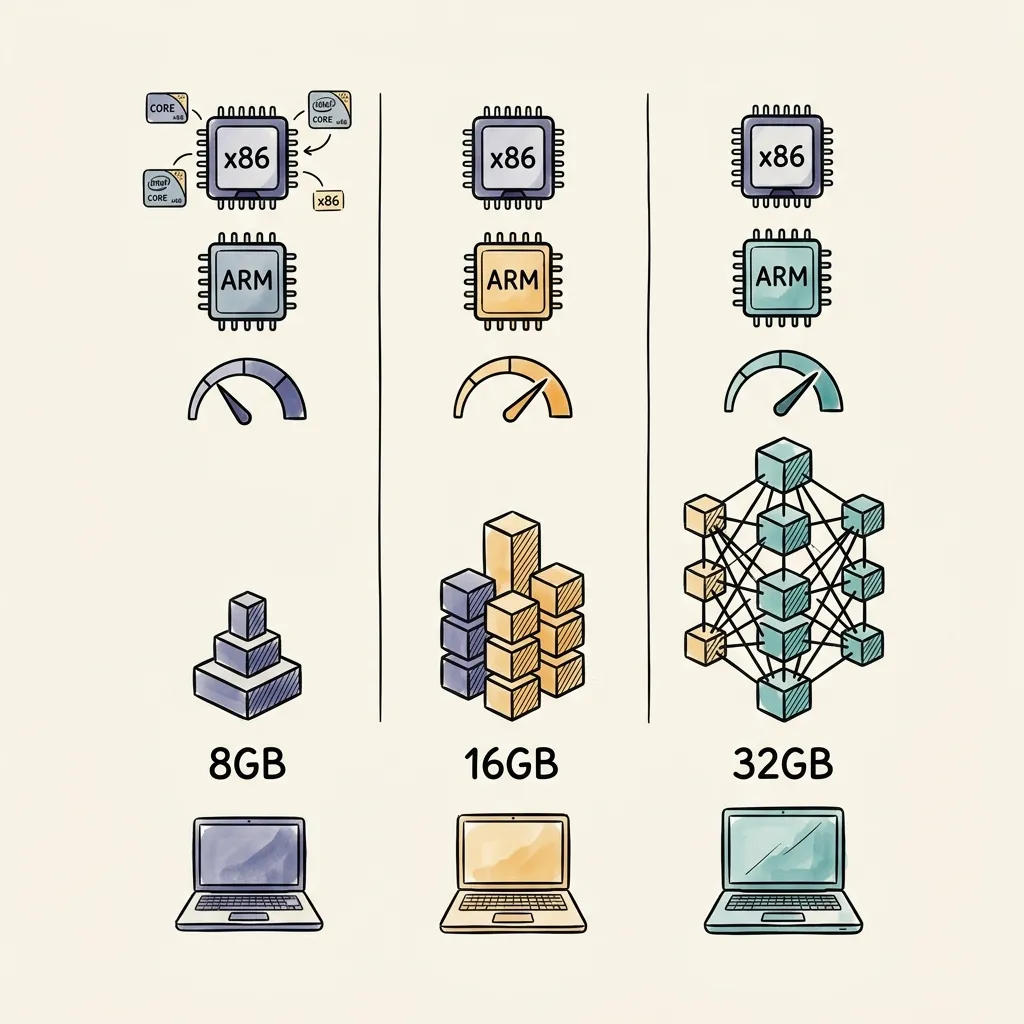
Use the following hardware selector matrix to match your available system RAM and CPU capabilities with optimal model parameter sizes:
| Hardware Tier | Recommended Engine | Model Target (Q4_K_M) | Expected Speed (CPU) |
|---|---|---|---|
| ≤8 GB RAM (Older Laptop, Mini PC) | Ollama | llama3.2:1b, phi4-mini, gemma3:2b | 8–18 tok/s |
| 8 GB RAM (Modern x86 with AVX2) | Ollama / llama.cpp | llama3.2:3b, qwen3:1.7b | 5–15 tok/s |
| 16 GB RAM (Standard x86 Workstation) | llama.cpp / LM Studio | mistral:7b, llama3.1:8b, qwen3:8b | 4–12 tok/s |
| 16 GB RAM (x86 CPU with AVX-512) | llama.cpp (-DGGML_NATIVE=ON) | mistral:7b, llama3.1:8b | 8–22 tok/s |
| 16 GB RAM (Apple Silicon M1/M2/M3/M4) | Ollama (Metal enabled) | llama3.1:8b, gemma2:9b | 15–25 tok/s |
| 32 GB RAM (High-end PC Workstation) | llama.cpp | llama3.1:13b, qwen2.5:14b | 3–8 tok/s |
| 32 GB RAM (Apple Silicon Pro / Max) | Ollama | llama3.1:13b, qwen2.5:14b | 20–35 tok/s |
| 64 GB+ RAM (Enterprise Server / Threadripper) | llama.cpp | llama3.3:70b (Q2_K / Q3_K) | 1–3 tok/s |
| 64 GB–128 GB RAM (Mac Studio M Ultra) | Ollama / MLX-LM | llama3.3:70b (Q4_K_M) | 10–16 tok/s |
LLM token generation is bound by memory bandwidth rather than raw FLOPS math. Upgrading from single-channel DDR4 memory to dual-channel DDR5 memory increases token production rate by 40%–70% on the exact same CPU.
What factors dictate CPU inference speed and performance?
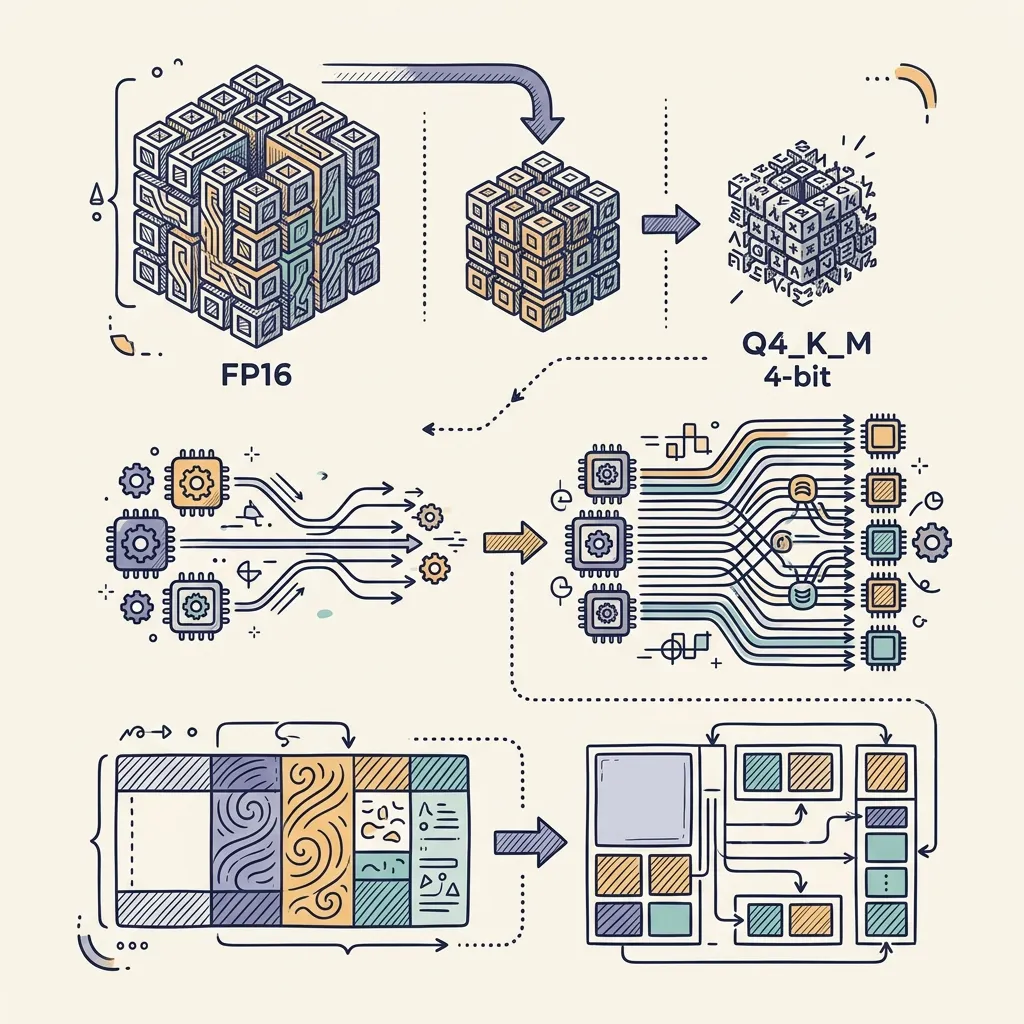
Five core hardware and software parameters determine your generation throughput (measured in tokens per second):
1. Quantization Precision (Bit Width)
Lower bit quantization reduces memory footprint and decreases the byte volume transferred from RAM to CPU caches per token:
- Q8_0 (8-bit): ~8.5 bits/weight. Highest quality, highest RAM usage (~8 GB for 7B).
- Q4_K_M (4-bit): ~4.5 bits/weight. Industry standard (~4.4 GB for 7B). ~2x faster generation than Q8_0 on CPU.
- Q2_K (2-bit): ~2.5 bits/weight. Minimal RAM (~2.8 GB for 7B), but exhibits noticeable output quality degradation.
2. CPU Vector SIMD Extensions
- AVX2: Standard 256-bit execution units available on modern x86 chips.
- AVX-512: 512-bit vector units on supported Intel Xeon, Core 11th Gen+, and AMD Ryzen 7000/9000 CPUs. Delivers up to 2x speedups over AVX2 in llama.cpp GEMM kernels.
- ARM NEON: Vector extensions on ARM processors powering Apple Silicon and Snapdragon X chips.
3. Context Length and KV Cache Sizing
Memory allocated for attention state grows linearly with context size:
KV Cache Bytes = 2 × Layers × KV Heads × Head Dim × Context Length × Bytes per ElementFor an 8B model with 16,384 tokens of context at FP16 precision, the KV cache alone consumes ~1.5 GB of RAM. You can halve KV cache memory using llama.cpp cache quantization:
./build/bin/llama-server -m model.gguf --cache-type-k q8_0 --cache-type-v q8_04. CPU Thread Scaling (-t / --threads)
Setting thread count equal to physical CPU cores delivers optimal performance. Setting thread count higher than physical cores (hyperthreading) introduces thread context switching overhead and degrades generation throughput.
How do you troubleshoot common CPU-only LLM errors?
Here are solutions for common errors encountered during CPU-only execution:
1. “No NVIDIA GPU detected. Ollama will run in CPU-only mode.”
- Cause: Informational notice emitted by Ollama when no CUDA device driver is detected.
- Fix: No action required. Ollama operates normally on CPU. To suppress the warning, set
OLLAMA_CPU_WARNING=0.
2. “Illegal Instruction” / Core Dump on Startup
- Cause: Pre-compiled llama.cpp or Ollama binary was compiled with AVX2 or AVX-512 instructions not supported by your legacy CPU.
- Fix: Rebuild llama.cpp from source without native architecture optimizations:
bash
cmake -B build -DGGML_NATIVE=OFF
cmake --build build --config Release
3. Out of Memory (OOM) or Process Termination
- Cause: Total RAM required by model weights + KV cache + OS background processes exceeded physical memory.
- Fix:
- Switch to a lower quantization preset (e.g.,
Q4_K_SorQ3_K_M). - Reduce context length (
-c 2048). - Enable KV cache 8-bit quantization (
--cache-type-k q8_0).
- Switch to a lower quantization preset (e.g.,
4. Slow Generation Speed (< 1 Token/sec)
- Cause: CPU thread oversubscription, single-channel RAM bottlenecks, or missing SIMD compiler flags.
- Fix: Explicitly set thread count to physical core count (
-t 4or-t 8), close background RAM-heavy apps, and verify binary compilation with compiler optimizations (-O3).
Which small LLM models work best on CPU?
Selecting the right small language model (SLM) ensures fast responses on modest hardware without sacrificing reasoning capabilities.
Tier 1: Low RAM Systems (≤8 GB RAM)
- Llama 3.2 3B Instruct: Meta’s lightweight model. Excellent general instruction following and reasoning in 2.0 GB RAM (Q4_K_M).
- Phi-4-mini (3.8B): Microsoft’s MIT-licensed reasoning model trained on synthetic data. Fits in ~2.5 GB RAM.
- Gemma 3 2B: Google’s lightweight open model. Generates up to 30+ tok/s on quad-core CPUs.
Tier 2: Standard Systems (16 GB RAM)
- Llama 3.1 8B Instruct: Industry standard benchmark model. Outstanding coding, summarization, and task orchestration (~4.9 GB RAM at Q4_K_M).
- Mistral 7B v0.3: Apache 2.0 licensed model known for fast throughput and strong reasoning (~4.5 GB RAM at Q4_K_M).
- Qwen 2.5 7B / Qwen 3 8B: Leading performance in math, coding, and multilingual tasks across 29 languages.
Tier 3: High Capacity Systems (32 GB RAM+)
- Llama 3.1 13B / 14B: Delivers complex multi-step reasoning and deep instruction adherence.
- Qwen 2.5 14B Instruct: Exceptional technical writing and code completion model requiring ~9 GB RAM at Q4_K_M.
Frequently Asked Questions (FAQ)
Can you run an LLM without a GPU?
Yes. Runtimes like llama.cpp, Ollama, and LM Studio execute quantized models on general-purpose CPUs using SIMD instructions (AVX2, AVX-512, NEON) and system RAM.
How much RAM do I need to run an LLM on CPU?
Plan roughly 0.5 to 1 GB of system RAM per billion parameters at 4-bit quantization (Q4_K_M). Minimum recommendations are 8 GB RAM for 3B models, 16 GB RAM for 7B–8B models, and 32 GB RAM for 13B–14B models.
What is GGUF and why does it matter for CPU inference?
GGUF (GGML Universal File) is a single-file binary container created for llama.cpp. It stores model weights, tokenizer vocabularies, and hyperparameters while supporting fast operating system memory-mapped file loading (mmap).
What does Q4_K_M mean?
Q4_K_M represents a GGUF quantization preset: Q4 specifies 4-bit weight precision, K indicates grouped k-quantization, and M denotes medium quantization variance across attention layers.
Is Ollama CPU only?
Ollama automatically runs in CPU-only mode whenever a compatible GPU is not detected. You can force CPU execution on systems with GPUs by setting CUDA_VISIBLE_DEVICES=-1 or num_gpu: 0.
How fast is CPU inference compared to a GPU?
CPU inference is typically 5 to 10 times slower than a modern discrete GPU. On an 8-core CPU with AVX2, a 7B 4-bit model generates 5–15 tokens/sec, whereas Apple Silicon unified memory reaches 15–35 tokens/sec.
Do I need AVX2 or AVX-512 for CPU LLMs?
AVX2 is practically required for acceptable x86 CPU performance. AVX-512 provides an additional 1.8x to 2.2x throughput increase over AVX2 in llama.cpp vector multiplication routines.
What is the best small LLM for an 8 GB RAM laptop?
Llama 3.2 3B, Phi-4-mini (3.8B), and Gemma 3 2B in Q4_K_M quantization are the top recommendations for 8 GB RAM laptops.
Does context length affect RAM usage?
Yes. Attention Key and Value vectors scale linearly with context size. Long context windows (16K+ tokens) can add 1 to 3 GB of RAM usage unless KV cache quantization (--cache-type-k q8_0) is enabled.
Can I run a 70B model on CPU?
Yes, provided you have 64 GB+ of system RAM. However, generation speeds on standard consumer x86 CPUs drop to 1–3 tokens/sec.
Is running an LLM locally private?
Yes. Ollama and llama.cpp run completely offline on your host machine. Prompts, contexts, and generated responses never transmit over external networks.
Do Macs run LLMs well on CPU?
Yes. Apple Silicon Macs feature unified memory architectures with memory bandwidth ranging from 100 GB/s (base chips) to 800 GB/s (M-series Ultra chips), allowing CPU cores to access model weights at near-GPU speeds.
Summary: Key takeaways for CPU-only local LLMs
Running large language models locally on CPU hardware provides a secure, private, and cost-free foundation for development:
- Match RAM to parameter size: Target 4-bit (Q4_K_M) models requiring 50% to 75% of your available physical system RAM.
- Choose the right tool: Use Ollama for simple CLI and API integration, llama.cpp for custom C++ builds, or LM Studio for a GUI environment.
- Optimize vector instructions: Compile with native vector flags (
AVX2,AVX-512, orNEON) and set thread counts to physical core counts. - Quantize KV caches: Use
--cache-type-k q8_0to compress context memory demands when working with long document prompts.
Read next:
- Jan AI Alternatives for Local LLMs
- Ollama Models Benchmark & Memory Guide
- Self-Hosted AI Stack Guide for 2026
Consolidated Sources
- llama.cpp GitHub Repository — ggml-org/llama.cpp
- llama.cpp Official Build Guide
- llama.cpp Package Manager Installation
- llama-server API Documentation
- llama.cpp KV Cache Memory Math Discussion #10068
- Wikipedia — Llama.cpp Architecture Overview
- Ollama Official Documentation & FAQ
- Ollama Issue #1046 — Forcing CPU Execution Mode
- Ollama Issue #1279 — SIMD Instruction Auto-detection
- Ollama Issue #11051 — WSL2 CPU Hardware Environment
- Hugging Face Hub — GGUF Specifications
- Hugging Face Hub — Integrating GGUF with llama.cpp
- Hugging Face Discussion — Large Model mmap Paging Performance
- LM Studio System Hardware Requirements
- Llama-cpp.com Official Companion Documentation
- Clarifai — Llama.cpp Execution Engine Analysis
- ThinkSmart — Deep Dive into Llama.cpp Performance
- SteelPh0enix — Llama.cpp Optimization Manual
- M. Groeber — Benchmarking Llama.cpp on Legacy Hardware
- OpenBenchmarking — Llama.cpp CPU Benchmarks
- InsiderLLM — KV Cache Memory Optimization Guide
- Kaitchup — Choosing GGUF Quantization Presets
- Will It Run AI — GGUF Quantization Technical Guide
- BMDPAT — GGUF Q4 vs Q5 vs Q8 Performance Analysis
- Enclave AI — Practical GGUF Quantization Manual
- Leeroopedia — GGUF Architecture & Memory-Mapped File I/O
- SnackOnAI — Llama.cpp Memory Mapping Deep Dive
- Contra Collective — Context Length Scaling on Apple Silicon
- MLJourney — Mac M1/M2/M3/M4 Local LLM Benchmarks
- SitePoint — Local LLMs on Apple Silicon Guide
- Local AI Master — Apple Silicon Hardware Calculator
- Local AI Master — Best Macs for Local AI Workloads
- TensorRigs — RAM Sizing for Local LLM Execution
- AI-TLDR — Hardware Requirements for Open Models
- APXML — Preparing Hardware for Local LLM Environments
- RNfinity — LLM Hardware Requirements Breakdown
- TechBriefed — RAM Requirements for Local Inference
- Local AI Master — Memory Architecture Requirements
- Rochaus Design — Running LM Studio on Modest Hardware
- Thunder Compute — LM Studio Workflow Guide
- Artificial Intelligence Wiki — LM Studio Optimization
- HakeDev — Complete LM Studio Hardware Manual
- Daily.dev — Best Local LLM Models to Run
- Machine Learning Mastery — Top Small Language Models
- PromptQuorum — Best Beginner Local Models
- CodeWithFimi — Laptop Hardware for Local LLMs
- Ertas AI — Enterprise Small Language Model Guide
- Leah Tara — Running LLMs Locally Without a GPU
- Ashray Dahal — Complete Local AI with Ollama Guide
- Sean McP — Running Ollama Without a GPU
- G. Buchan — Hosting LLMs on CPU-Only Hardware
- CSDN — Llama-cpp AVX2 vs AVX-512 Vector Benchmarks
- Dev.to — Q4 KV Cache Memory Sizing Math
- StackOverflow — Running Quantized GGUF Models on CPU
- Reddit LocalLLaMA — Vector Speedups for Legacy CPUs
Related Articles
Deepen your understanding with these curated continuations.

Best Ollama Models to Run in 2026: Benchmarks & Recommendations
Fact-checked benchmarks of Ollama models for 2026: Llama 4 Scout/Maverick, Qwen 3, DeepSeek R1, Mistral Small 3, Gemma 4, Phi-4. Speed, quality, VRAM requirements, and best models for coding, chat, reasoning, and local RAG.


Ollama & Local LLM Management Cheatsheet: Self-Hosted AI Guide
Master local LLM operations with Ollama. Learn core CLI commands, custom Modelfile syntax, GPU environment tuning, and REST API integrations.

Generative AI in Business: Operationalizing for Productivity
How enterprises deploy generative and agentic AI to drive measurable productivity gains, overcome operational barriers, and realize ROI.