
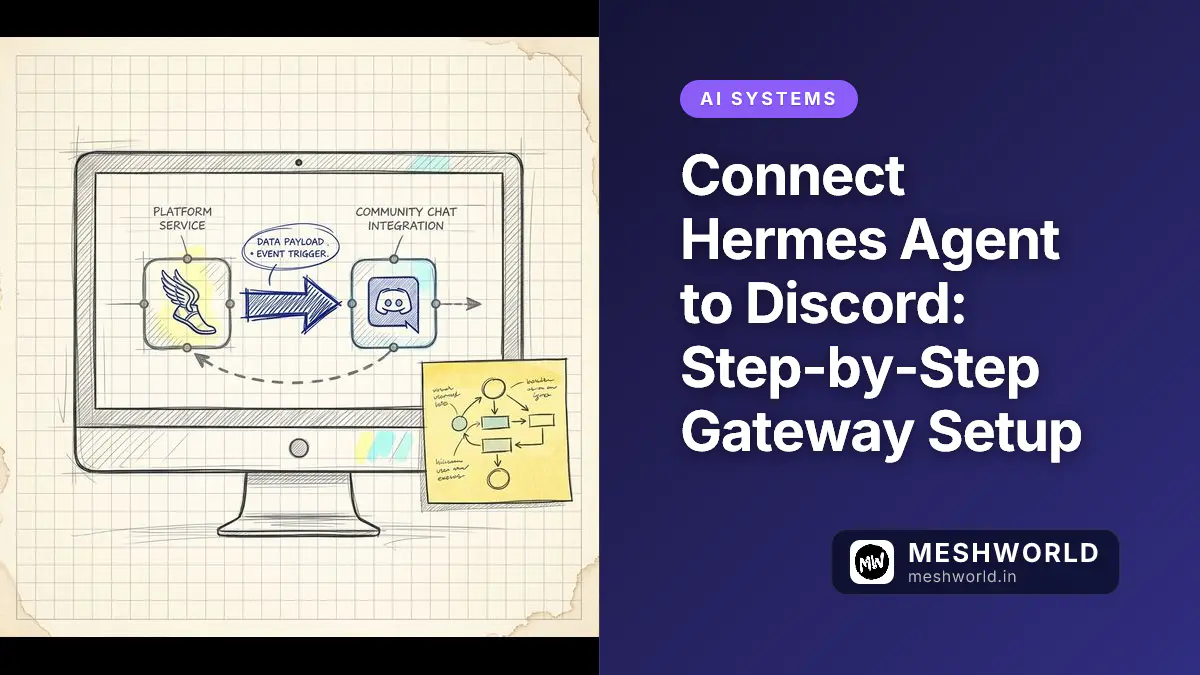
Integrating an autonomous AI assistant into your developer chat room shouldn’t involve editing 500 lines of raw YAML config files. With the v0.17.0 “Reach Release” of Hermes Agent, the setup flow moves out of the CLI prompts and into a local browser-based Web Admin Panel.
This change reduces formatting errors and lets you configure the Discord gateway with a few button clicks. By routing your agent through a Discord bot, it can help your team write code, run audits, and organize tasks from the same channel you use for daily standups.
Here is the exact step-by-step workflow to get Hermes Agent online and talking in your Discord server.
Key Takeaways
- Hermes Agent v0.17.0 handles Discord bot pairings through a local Web Admin Panel instead of terminal configurations.
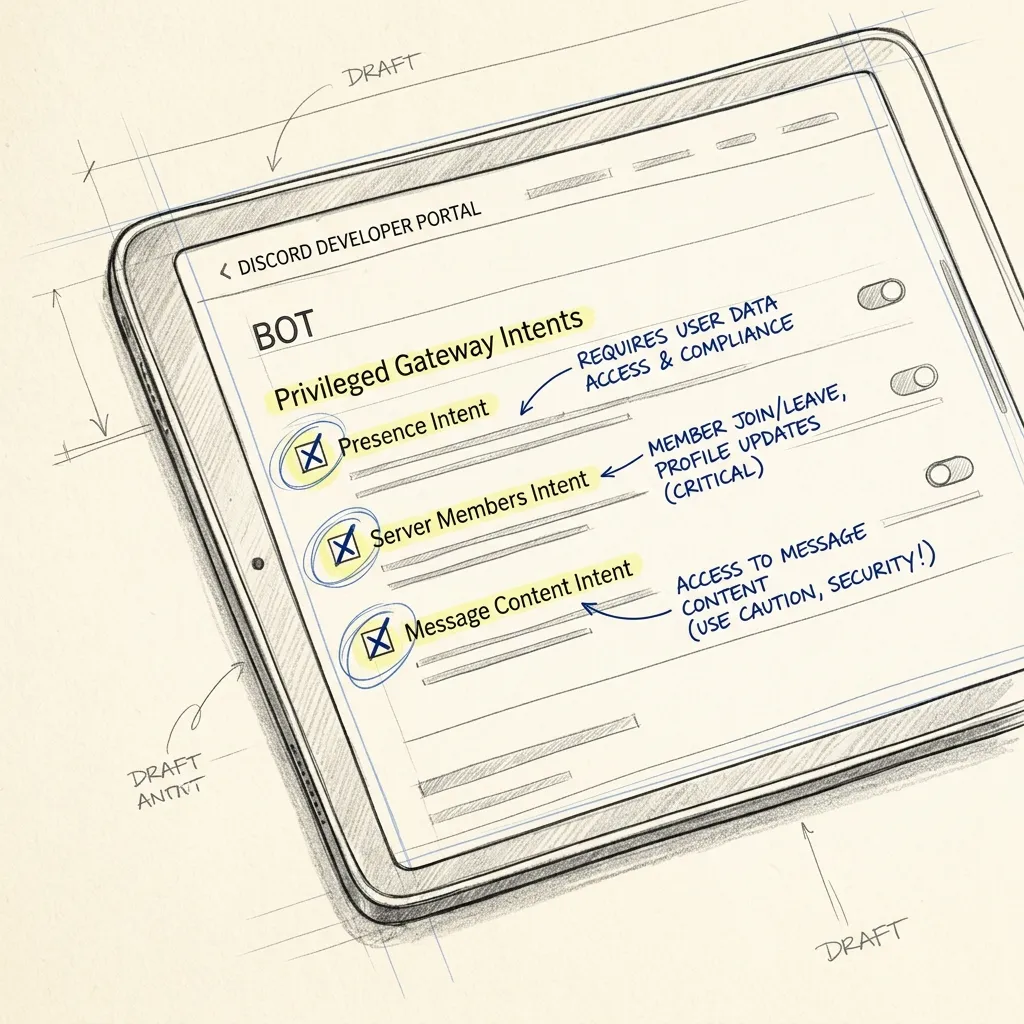
- You must enable all three Privileged Gateway Intents (Message Content is critical) in the Discord Developer Portal.
- The web interface runs locally on port 9119 by running the 'hermes dashboard' command.
- You can restrict the bot's operation to specific channels using channel ID filter parameters in the dashboard settings.
Prerequisites
Before starting the integration, verify you have the following elements in place:
- Hermes Agent Installed: You need Hermes Agent v0.17.0 (or newer) running on your local machine or server. If you haven’t installed it, run the one-liner setup:
bash
curl -fsSL https://raw.githubusercontent.com/NousResearch/hermes-agent/main/scripts/install.sh | bash - Discord Account: A Discord account with administrative permissions (Manage Server) on the server where you want to invite the bot.
- LLM Provider Configured: Your agent must have a functioning LLM backend (such as OpenRouter, OpenAI, or local Ollama) active and responding to terminal commands.
Step 1: Create a Discord Application & Bot
Hermes requires a bridge to talk to Discord. We construct this bridge by registering a new application on the official developer interface.
- Open the Discord Developer Portal and sign in.
- Click the New Application button in the top-right corner.
- Enter a name (e.g.,
Hermes Agent) and agree to the terms, then click Create. - In the left sidebar, navigate to the Bot tab.
- Click Reset Token under the Username section to reveal your bot’s secret credentials. Copy this token and save it in a temporary text file.
Your bot token acts as the password to your Discord bot. Anyone with access to this token can read your chats, spam channels, or hijack server configurations. Never commit this token to Git repositories or expose it on public websites.
Configure Privileged Gateway Intents
Below the token section on the Bot tab, you will find the Privileged Gateway Intents settings. This step is where most developer setups fail. You must toggle the following three intents to ON:
- Presence Intent: Allows Hermes to check which users are active, helping coordinate scheduled actions.
- Server Members Intent: Helps Hermes scan the user directory to process mentions and routing commands.
- Message Content Intent (CRITICAL): Allows the bot to read the text of incoming messages. Without this enabled, the bot remains blind to user chat messages and will never respond.
- Click Save Changes at the bottom of the page.
Step 2: Set Up Bot Installation & Invite URL
Now that the bot settings are saved, you must generate an invite link to install the bot on your target server.
- Navigate to the Installation tab in the developer portal sidebar.
- Under the Installation Link section, select Discord Provided Link if it is not selected.
- Scroll down to the Default Install Settings area.
- Under Scopes, select the following checkboxes:
botapplications.commands(for slash command support)
- Under Bot Permissions, check these options:
- Send Messages
- Read Message History
- Send Messages in Threads
- View Channel (Read Messages)
- Add Reactions
- Copy the generated Install Link from the installation tab.
- Paste this link into a new browser tab, select your target Discord server from the dropdown list, and click Authorize.
Step 3: Launch the Hermes Web Admin Panel
With the Discord bot authorized on your server, you need to input the bot token into the Hermes Agent configuration database.
Rather than editing YAML files in terminal editors, we use the local dashboard.
- Open your terminal and run the dashboard command:
bash
hermes dashboard
By default, this launches a local web server and automatically opens your browser to:
http://127.0.0.1:9119
Custom Startup Options
If you are running Hermes Agent on a remote virtual machine (VPS) via SSH, or if the default port is occupied, you can modify the command:
- Custom Port: Use
--portto specify another local interface:bashhermes dashboard --port 8080 - No Browser Auto-Open: Use
--no-opento start the server headlessly:bashhermes dashboard --no-open - External Network Binding: To access the dashboard from a different device, bind it to all interfaces:
bash
hermes dashboard --host 0.0.0.0
Binding the dashboard to 0.0.0.0 exposes it to your local network or the wider internet. Because the panel allows direct input of secret API keys, do not leave this port open. Always use an SSH tunnel or a private VPN link (like Tailscale) for remote administration.
If the dashboard command fails with a “command not found” error, verify that you installed the web interface dependencies:
pip install 'hermes-agent[web,pty]'Step 4: Configure the Discord Gateway in the Web UI
Once you open the Web Admin Panel, configuring the connection takes less than a minute.
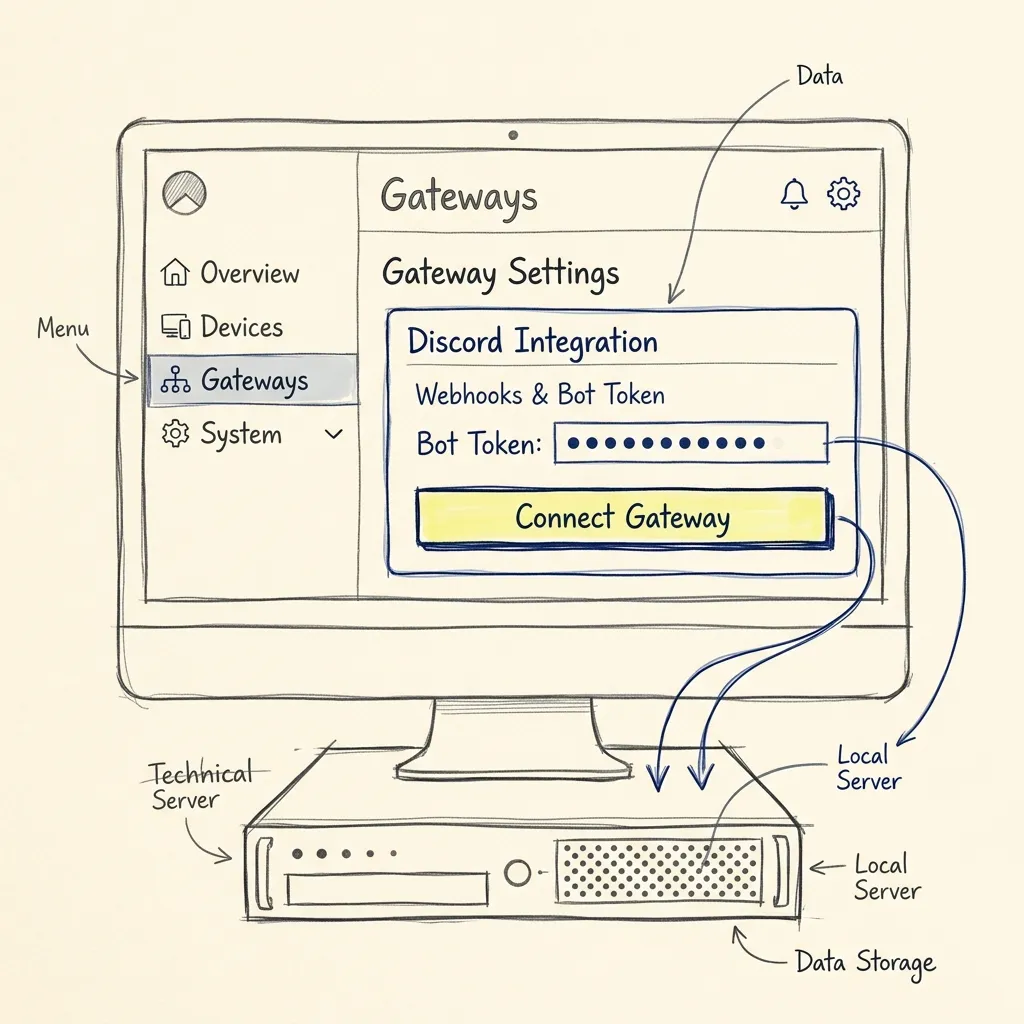
- Click on the Gateways tab in the dashboard’s sidebar menu.
- Select Discord from the list of available messaging channels.
- Paste the Discord Bot Token you copied in Step 1 into the token field.
- If you want the agent to only listen inside a specific channel rather than reading every server channel, enter the target Discord channel ID in the Channel Filter field. (You can grab this ID in Discord by enabling Developer Mode in Discord settings, right-clicking the channel, and selecting “Copy Channel ID”).
- Toggle the Enable Learning switch if you want the agent to record conversations and add them to its long-term memory.
- Click the Save Gateway button.
Step 5: Start the Gateway Service
With settings saved, the final step is to boot the gateway runner.
- Click the Start Gateway button inside the dashboard interface.
- Alternatively, if you prefer using the command line for process management, you can start it via your terminal:
bash
hermes gateway start
To check the operational state of your gateway, run:
hermes gateway statusYou should see an output indicating the Discord gateway is active and connected:
✓ Hermes Gateway Status:
  - Discord Gateway: Connected (Active)
  - Bot User: HermesAgent#1234
  - Latency: 24ms
Go to your Discord server. You should see your bot listed as Online. Type @Hermes Hello! in the target channel to confirm it replies.
Troubleshooting Common Issues
The Bot Is Online but Does Not Respond to Messages
This is the most common integration issue. It points to a permissions mismatch:
- Intents Check: Return to the Discord Developer Portal, navigate to the Bot tab, and double-check that Message Content Intent is enabled. If it is disabled, Discord refuses to send the message text to your local agent.
- Channel Access: Ensure the bot has permission to view the channel, send messages, and read history inside the specific channel you are typing in.
Error: “Address already in use” on Port 9119
If another process is occupying the default dashboard port:
- Identify the blocking process:
bash
lsof -i :9119 - Start the dashboard on a different port:
bash
hermes dashboard --port 9050
High Latency or Dropped Responses
If the agent is taking a long time to reply in Discord:
- Check your local LLM server console if running locally. Slow replies are usually caused by long model inference times on CPU rather than gateway issues.
- If using cloud APIs, verify your API balance and key limits.
Wrapping Up
Setting up the Discord gateway using the Web Admin Panel ensures your configurations remain clean and functional. Once running, Hermes Agent will start cataloging skills, monitoring scheduled automation, and answering developer questions directly inside your team’s chat space.
Summary Checklist
- Create a new app and bot on the Discord Developer Portal.
- Turn on all three Privileged Gateway Intents (especially Message Content).
- Generate a bot invite link with
botandapplications.commandsscopes. - Authorize the bot to your Discord server.
- Run
hermes dashboardin your terminal to start the local admin UI. - Input the Bot Token inside the Gateways tab and click Save.
- Click Start Gateway or run
hermes gateway startto go live.
What to Read Next
- Hermes Agent Advanced Configuration — Fine-tune parameters and optimize learning cycles.
- Install Hermes Agent in 15 Minutes — A complete setup checklist for new server hardware.
- Self-Hosted AI Stack 2026 — Combine local models and tools with your chat agent.
Frequently Asked Questions
How do I limit Hermes to a single channel?
You can restrict the agent’s focus by navigating to the Gateways tab in the Web Admin Panel, selecting Discord, and filling in the Channel Filter field with your specific Discord Channel ID. The agent will ignore messages sent outside this designated channel.
Can I run multiple Discord bots on a single Hermes instance?
Yes. You can configure multiple profiles in the Web Admin Panel. Each profile can connect to a different Discord bot token, allowing you to deploy specialized assistant bots across different servers from a single local daemon.
Does Hermes learn from every chat message?
Hermes only records and analyzes conversations if Enable Learning is active in the Gateway settings. When active, it processes chats to update its user memory and create custom skill documents, ensuring it gets more helpful as you interact with it.
How do I update Hermes Agent to v0.17.0?
If you are running an older version, update the installation by running this command in your terminal:
hermes updateThis updates the binaries and adds the Web Admin Panel files to your setup.


